Skip to content

RecruitPrivate beta

Recruiting on LinkedIn: source, check the fit and shortlist, per job

Write a job with its must-haves. Search LinkedIn from them through your own account, see how each person fits and why, and keep every candidate on one board per job. Agencies add clients, a talent pool, placements and shortlists a client answers by private link. Adding someone to a job contacts nobody. The suite is in private beta and opens by invitation.

Made forRecruiters and hiring teams

What it does

Each job, the people who fit it, and where every candidate stands.

  1. Every job, with its stages

    The Jobs page lists each role with its client, place and hiring manager and how many candidates sit at each stage. A job holds its own must-haves, nice-to-haves, location, years and pay.
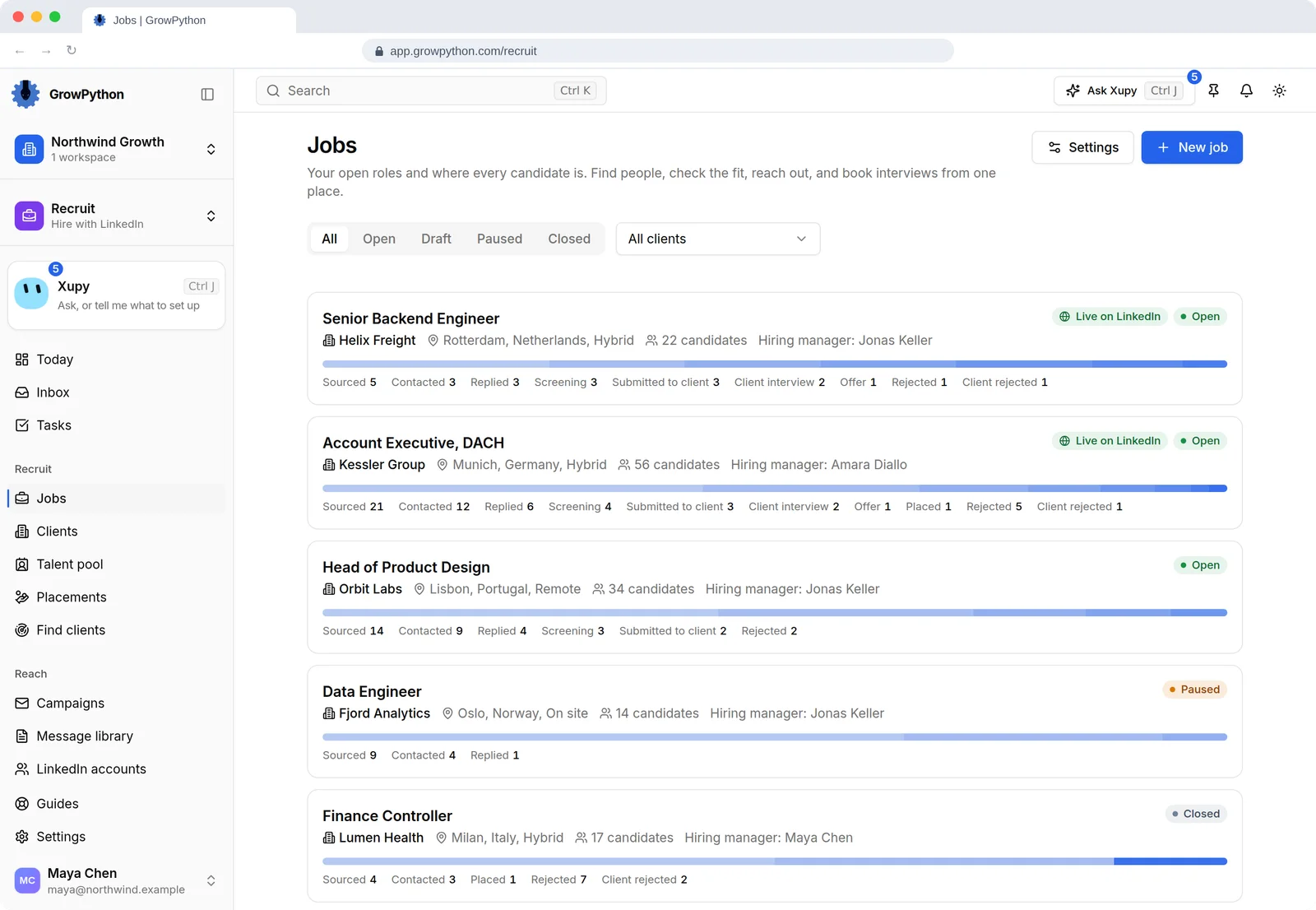
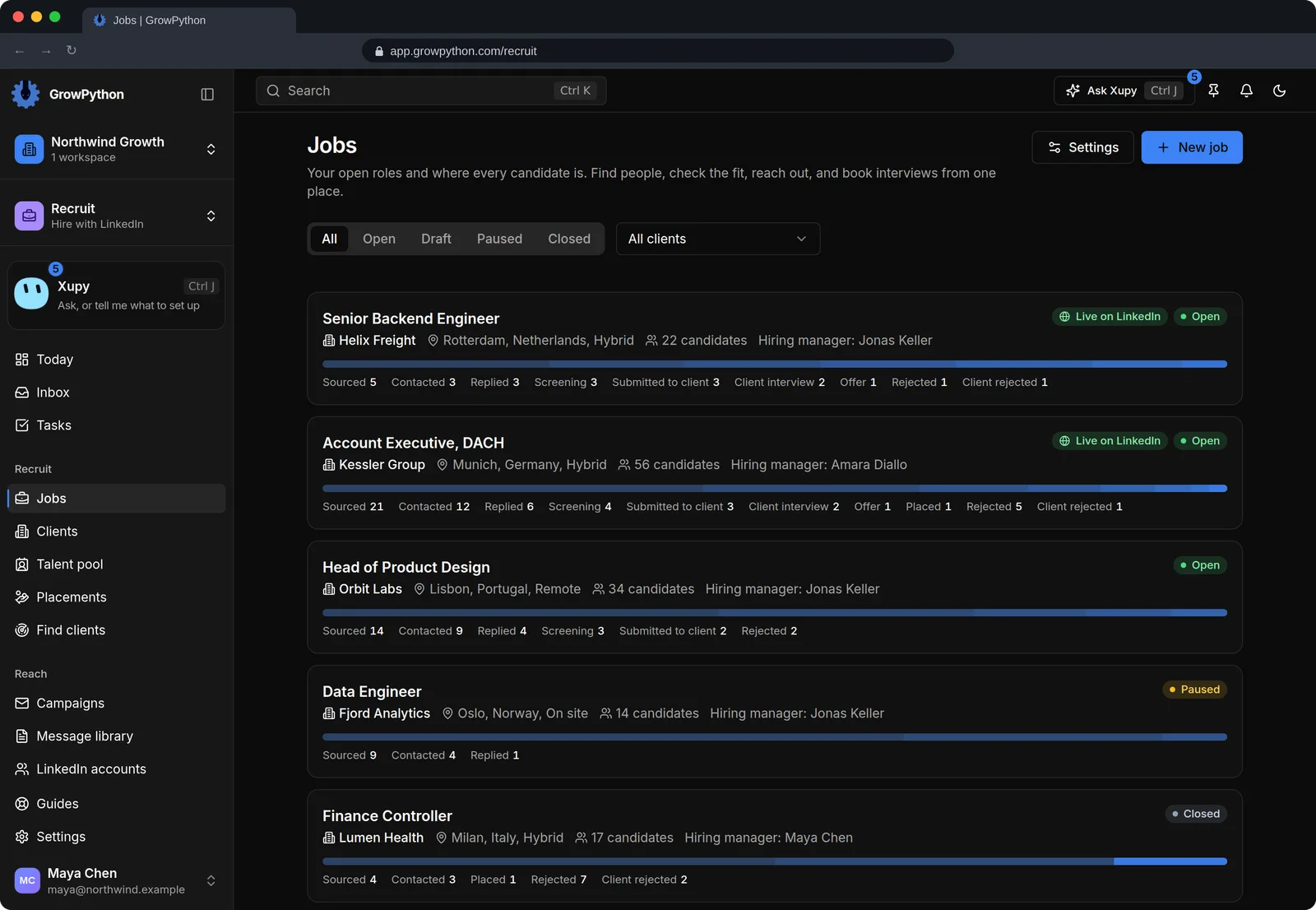
    The Jobs page of a demo recruiting workspace. Five job cards show the job title, the client company, the place, the number of candidates and the hiring manager, with a bar and a count for each stage from Sourced to Client rejected. Two jobs are marked Live on LinkedIn, and the jobs are Open, Paused or Closed. Above the list are filters for status and client, and Settings and New job buttons.The Jobs page of a demo recruiting workspace. Five job cards show the job title, the client company, the place, the number of candidates and the hiring manager, with a bar and a count for each stage from Sourced to Client rejected. Two jobs are marked Live on LinkedIn, and the jobs are Open, Paused or Closed. Above the list are filters for status and client, and Settings and New job buttons. Shown in the dark theme.
  2. Sourcing that starts from the job

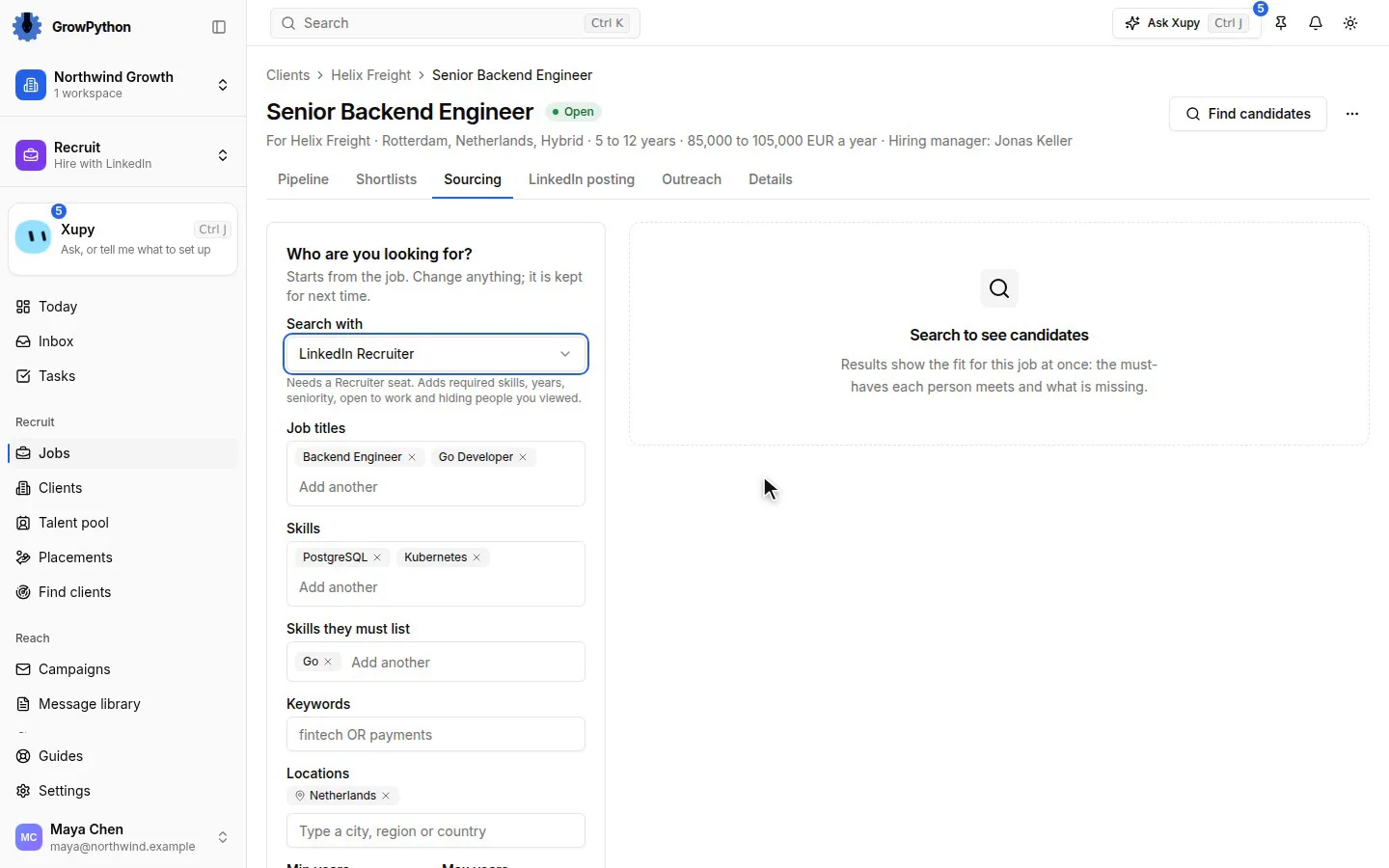
    The search is filled in from the job's requirements and runs through your own connected LinkedIn account: LinkedIn search, Sales Navigator or LinkedIn Recruiter, where your account has that seat. Each page shows up to 25 people. Change the search and it is kept for next time.
  3. A fit you can check

    Every person gets a fit for the job worked out by rules: Strong, Good or Weak, a score from 0 to 100, which must-haves are met and where that was found, and which are missing. AI writes one sentence about the fit only when you ask for it.
  4. One board per job

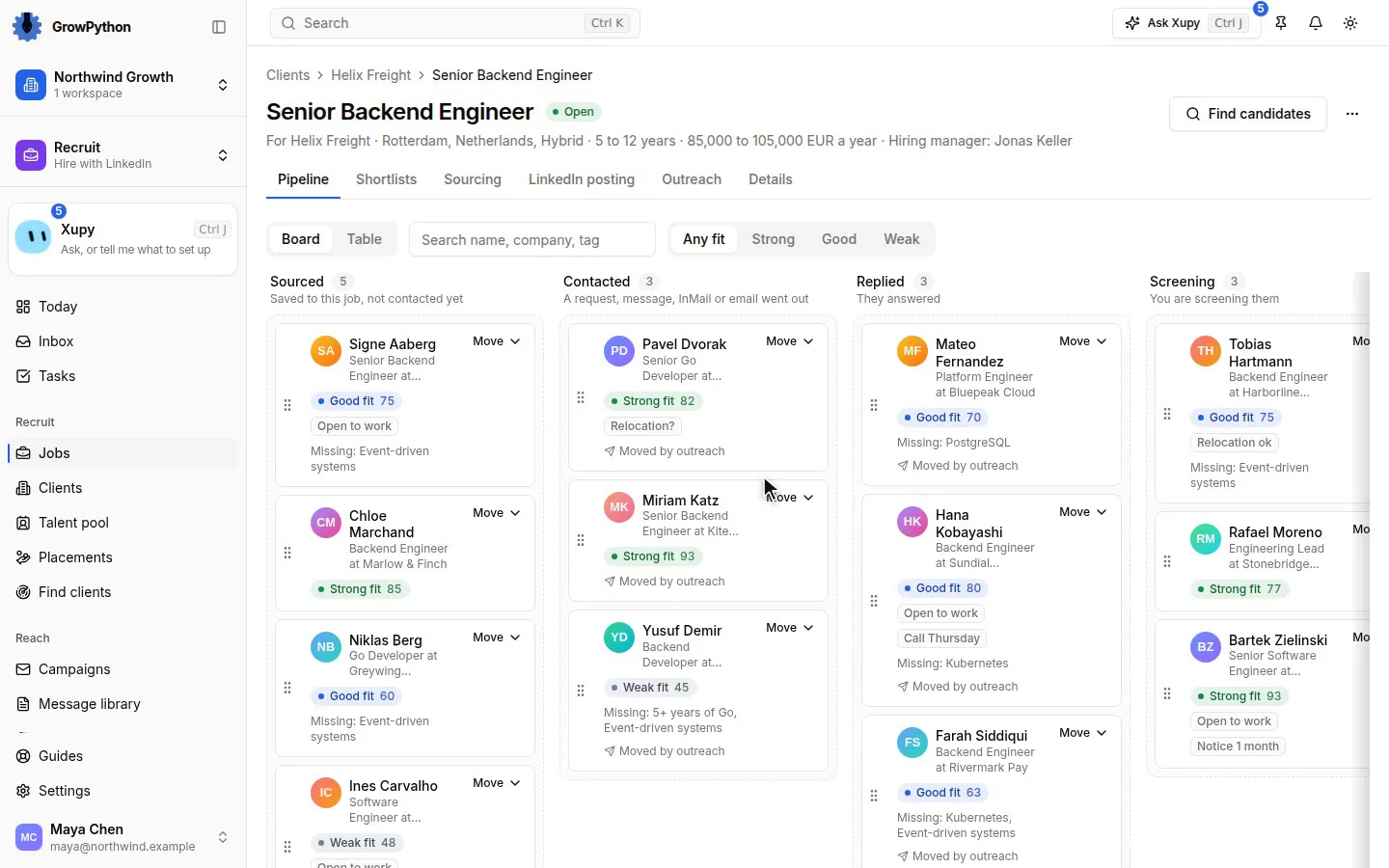
    Candidates move through Sourced, Contacted, Replied, Screening, Interview, Offer and Hired, or Rejected with a reason. Outreach moves a card to Contacted and Replied by itself. A move you make always wins.
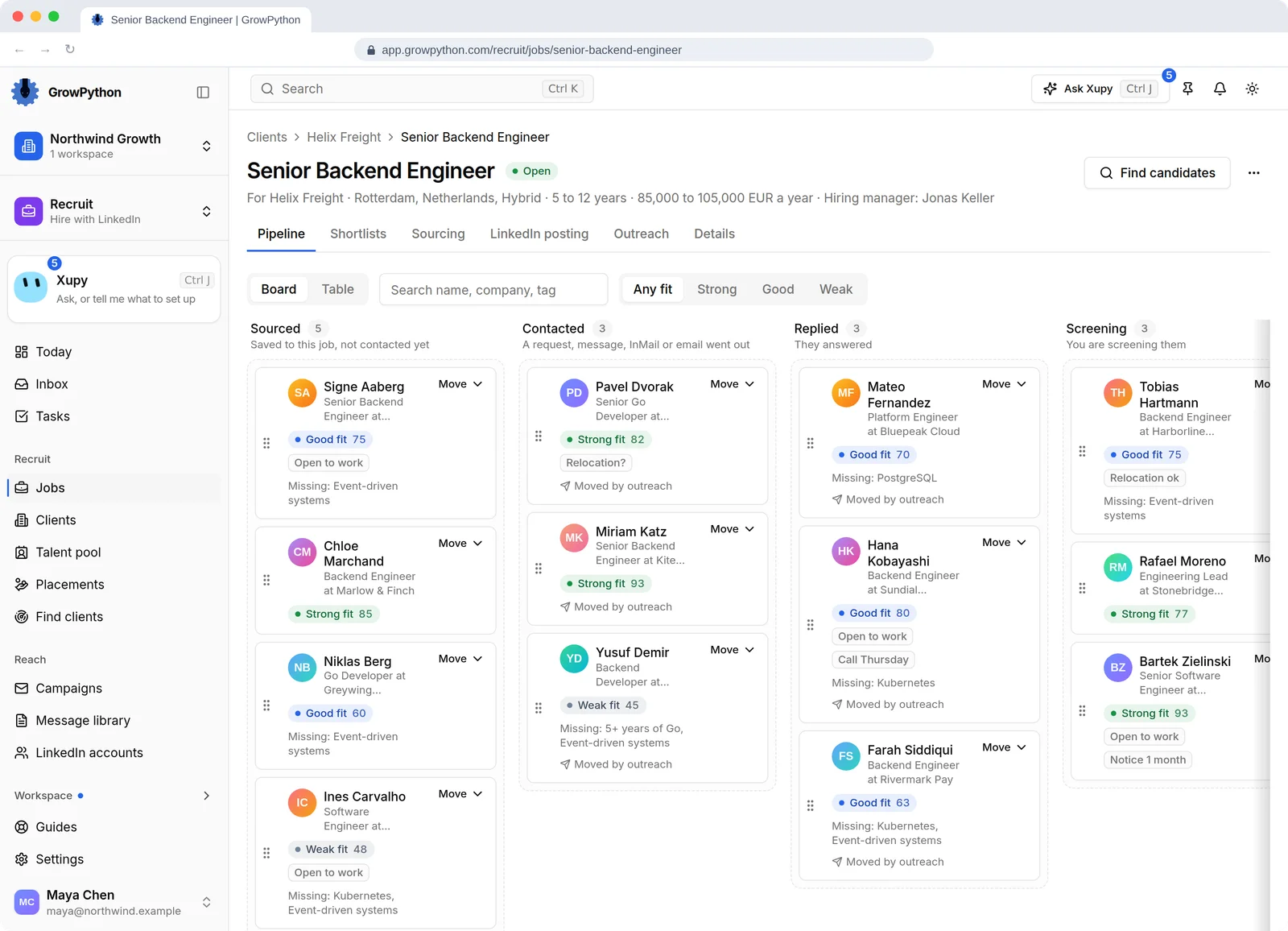
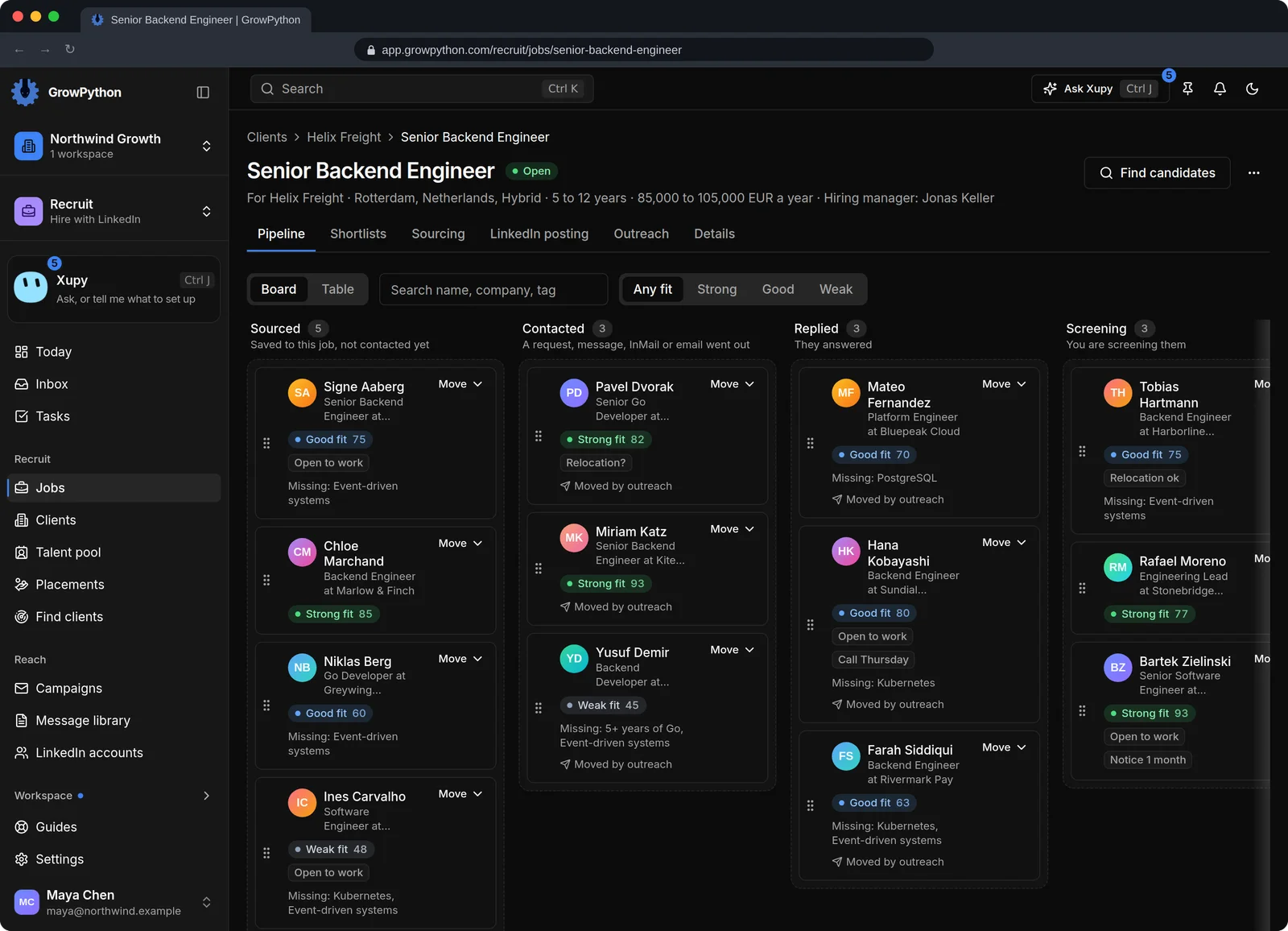
    The Pipeline tab of the same job as a board. Columns for Sourced, Contacted, Replied and Screening each carry a short explanation, such as Saved to this job, not contacted yet. Cards show a name, a role, a fit badge with a score, tags, the must-haves that are missing and, where it applies, Moved by outreach. Every card has a Move menu, and above the board are a Board and Table switch, a search box and a fit filter.The Pipeline tab of the same job as a board. Columns for Sourced, Contacted, Replied and Screening each carry a short explanation, such as Saved to this job, not contacted yet. Cards show a name, a role, a fit badge with a score, tags, the must-haves that are missing and, where it applies, Moved by outreach. Every card has a Move menu, and above the board are a Board and Table switch, a search box and a fit filter. Shown in the dark theme.
  5. Shortlists your client answers

    In agency mode, pick candidates for a shortlist, write a submission note for each, or ask AI for a draft of it, and share one private link. The client's answers appear next to each candidate.
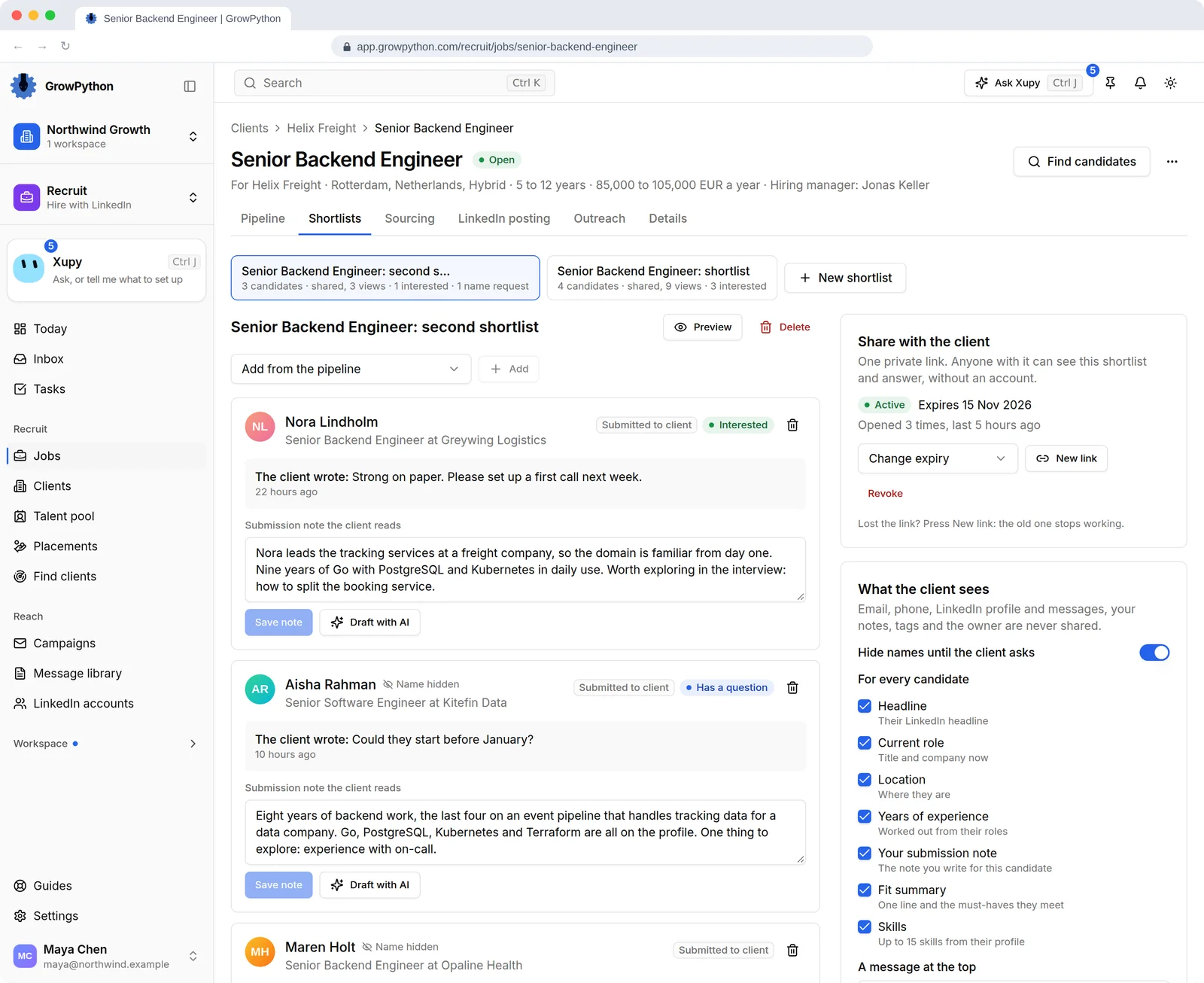
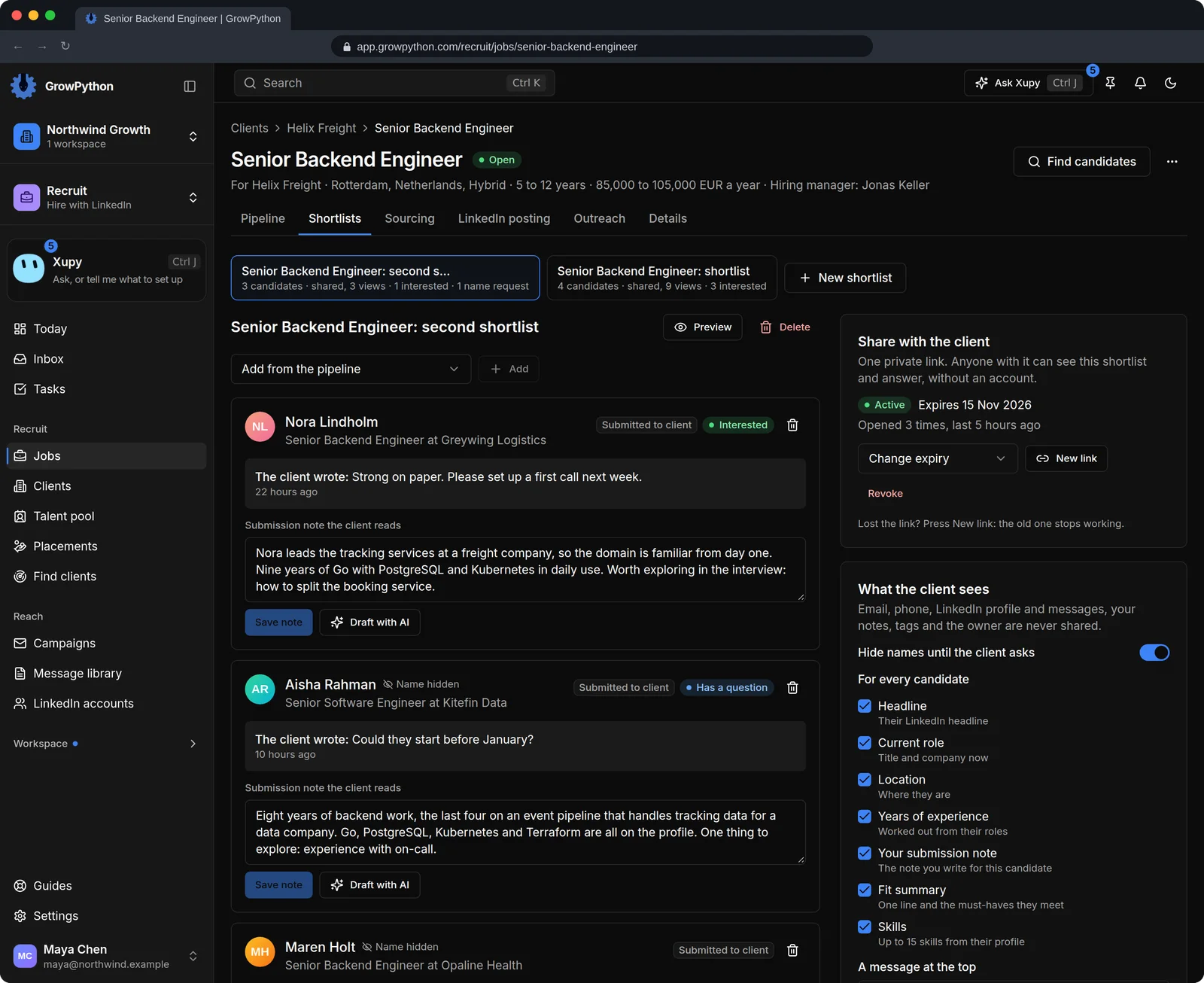
    The Shortlists tab of the same job, with a shortlist of three candidates open. Each candidate shows the stage Submitted to client, the client's answer such as Interested or Has a question, what the client wrote, and a submission note with Save note and Draft with AI buttons. On the right, a Share with the client panel shows one active private link with its expiry date, how often it was opened, and Change expiry, New link and Revoke. A What the client sees panel says email, phone, LinkedIn profile and messages, notes, tags and the owner are never shared, has Hide names until the client asks switched on, and tick boxes for each field.The Shortlists tab of the same job, with a shortlist of three candidates open. Each candidate shows the stage Submitted to client, the client's answer such as Interested or Has a question, what the client wrote, and a submission note with Save note and Draft with AI buttons. On the right, a Share with the client panel shows one active private link with its expiry date, how often it was opened, and Change expiry, New link and Revoke. A What the client sees panel says email, phone, LinkedIn profile and messages, notes, tags and the owner are never shared, has Hide names until the client asks switched on, and tick boxes for each field. Shown in the dark theme.
  6. A client page with only what you choose

    The client needs no account. They see the fields you ticked among headline, current role, location, years, your note, the fit summary and skills, and answer Interested, Not interested or I have a question. Names can stay hidden until the client asks.
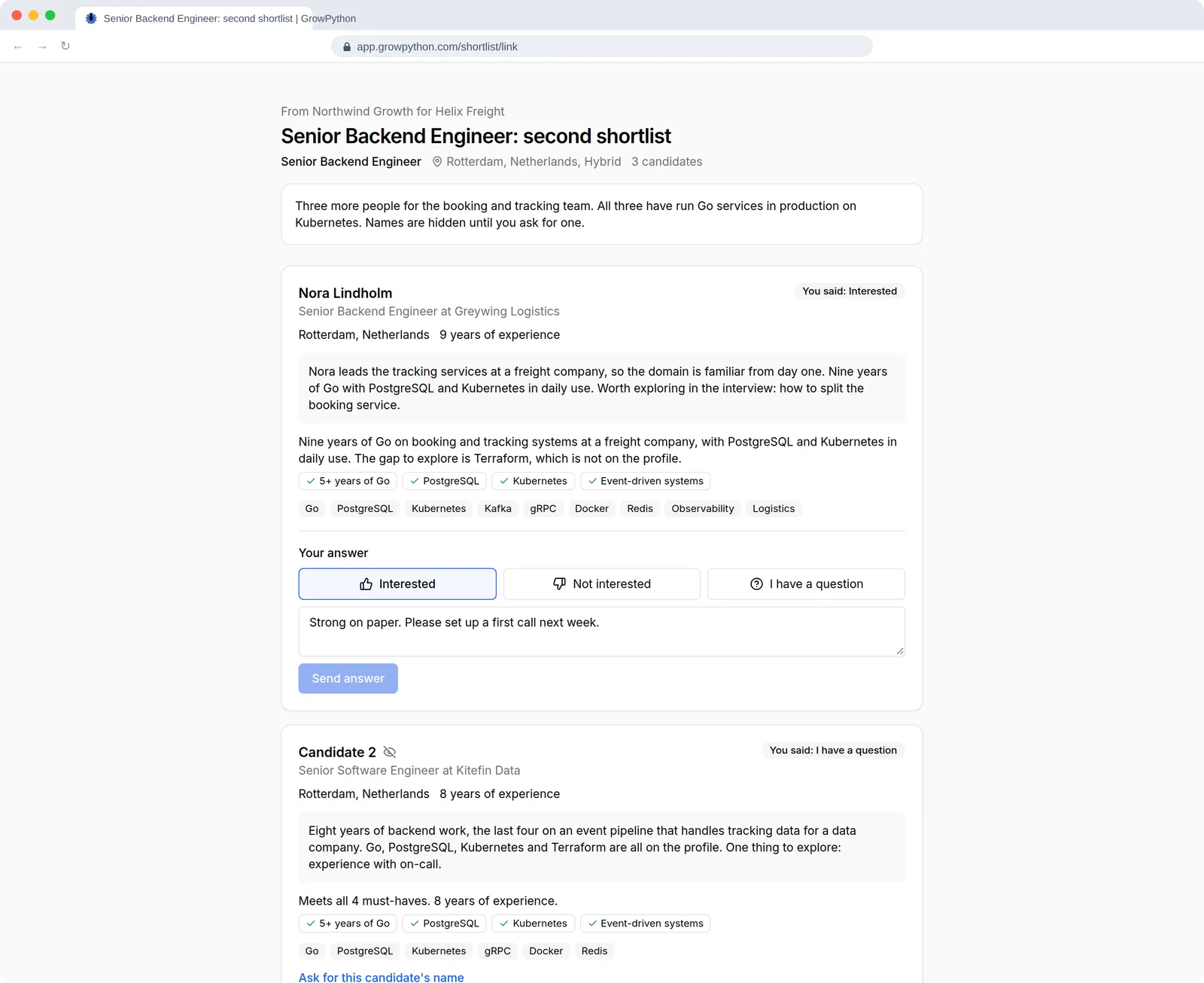
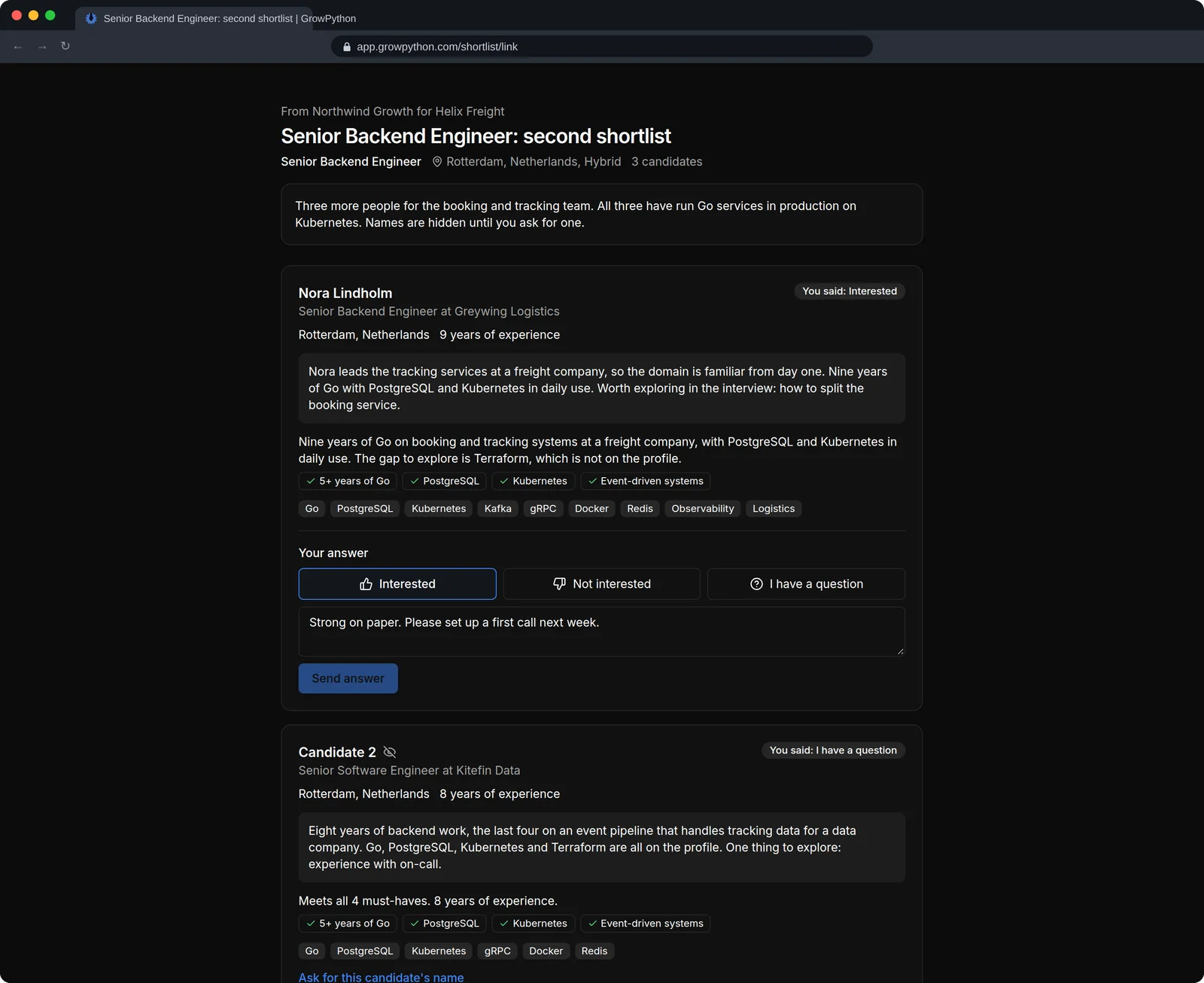
    The page a client opens from a shortlist link, without the app around it. It says From Northwind Growth for Helix Freight, then a message from the agency. The first candidate card shows a name, the current role, the place, years of experience, the submission note, a fit summary, four must-haves with ticks and a row of skills, with Interested, Not interested and I have a question buttons, a comment box and Send answer. The second card is called Candidate 2, with the name hidden and a link to ask for it.The page a client opens from a shortlist link, without the app around it. It says From Northwind Growth for Helix Freight, then a message from the agency. The first candidate card shows a name, the current role, the place, years of experience, the submission note, a fit summary, four must-haves with ticks and a row of skills, with Interested, Not interested and I have a question buttons, a comment box and Send answer. The second card is called Candidate 2, with the name hidden and a link to ask for it. Shown in the dark theme.
  7. Clients with their terms

    Each client company carries its fee terms, a percentage of the first year's salary or a fixed fee, the guarantee in days, its open jobs, its placements and who looks after it.
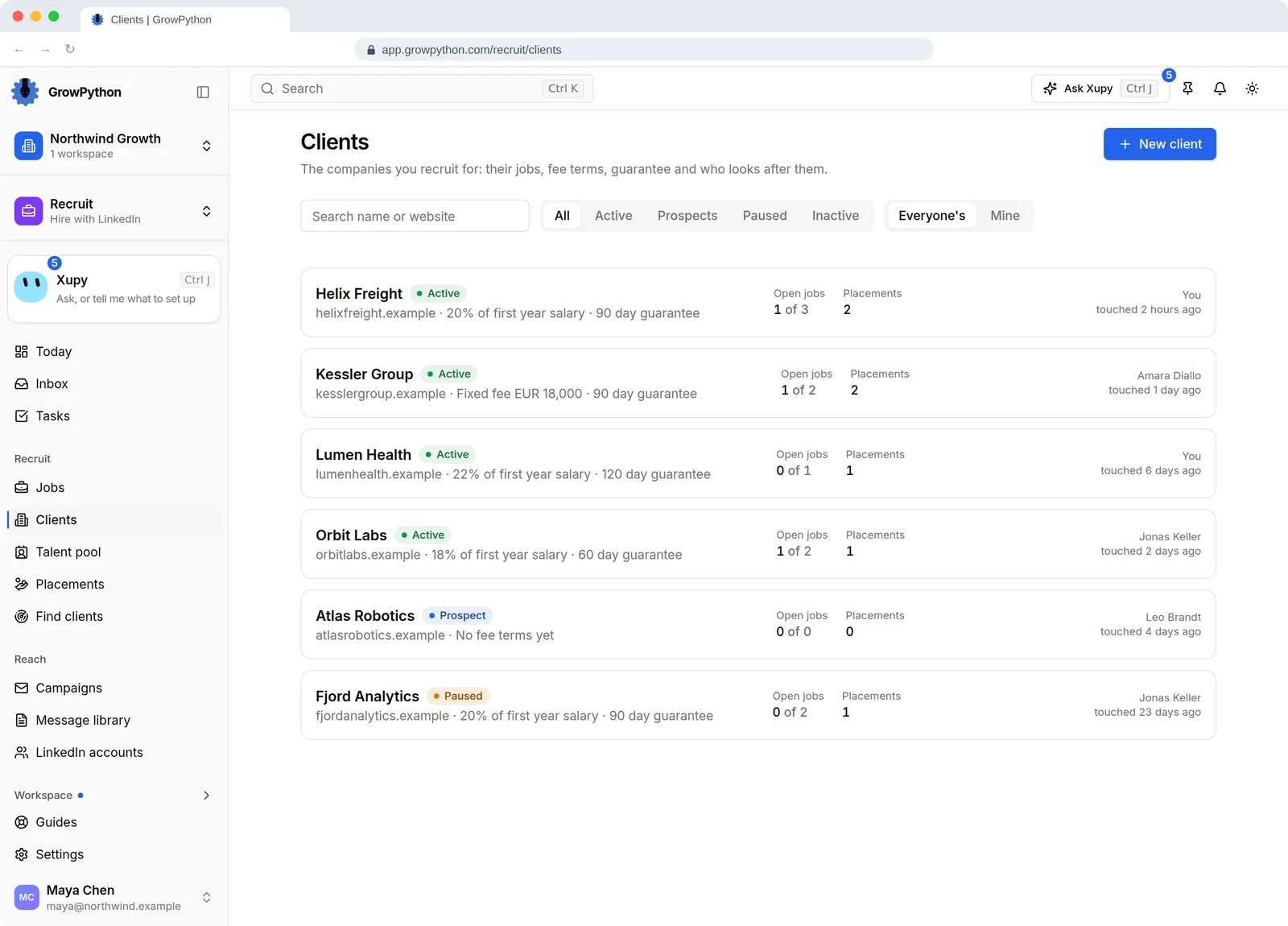
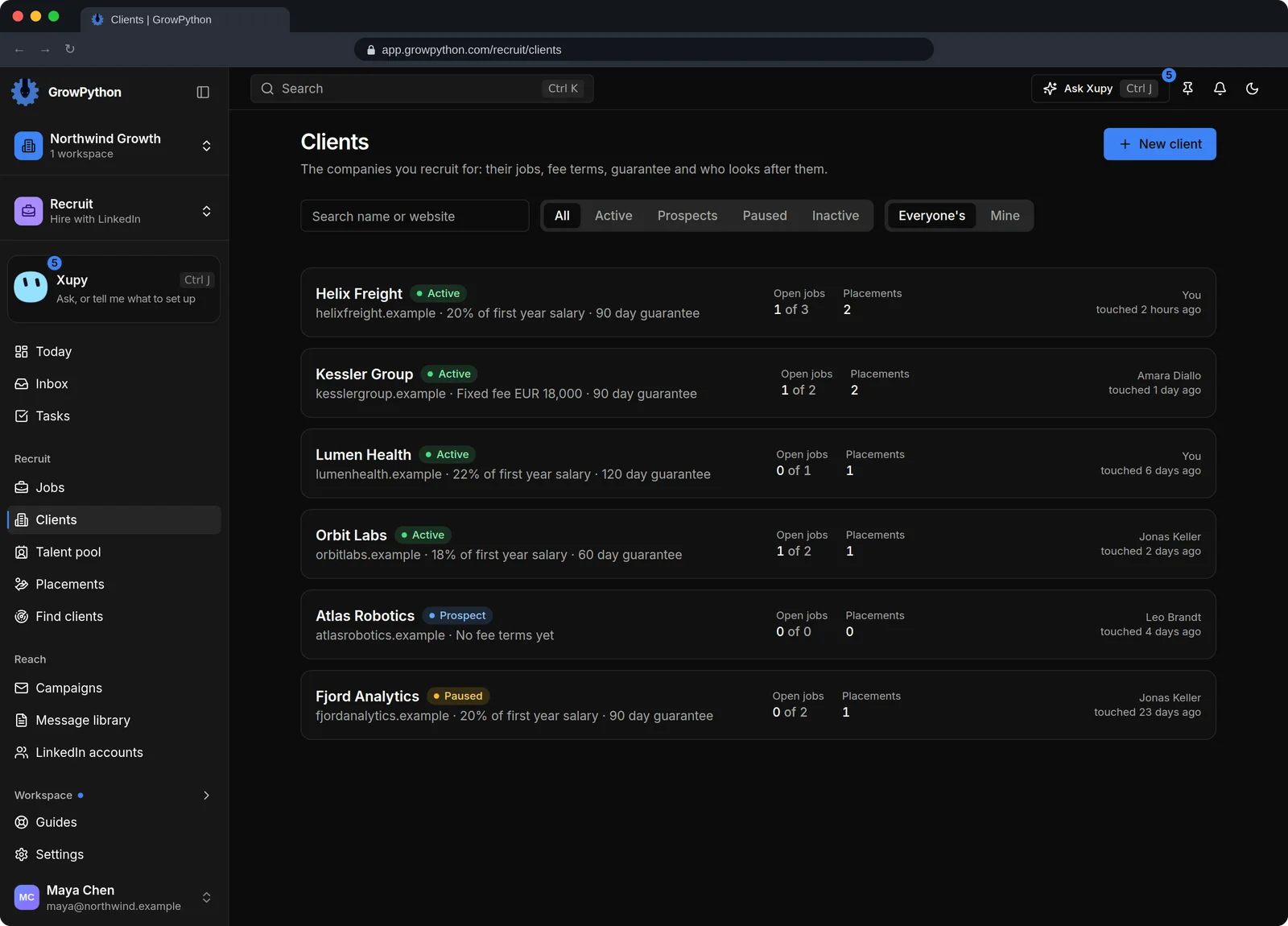
    The Clients page with six invented client companies. Each row shows the name, a status of Active, Prospect or Paused, the website, the fee terms such as 20% of first year salary or a fixed fee of EUR 18,000, the guarantee in days, open jobs, placements, the owner and when the client was last touched. Above are a search box, status filters, an Everyone's and Mine switch and a New client button.The Clients page with six invented client companies. Each row shows the name, a status of Active, Prospect or Paused, the website, the fee terms such as 20% of first year salary or a fixed fee of EUR 18,000, the guarantee in days, open jobs, placements, the owner and when the client was last touched. Above are a search box, status filters, an Everyone's and Mine switch and a New client button. Shown in the dark theme.
  8. One talent pool

    Everyone the team has sourced appears once, across every job and client, with the jobs they are in, an owner and the last touch. Search the pool before you search LinkedIn.
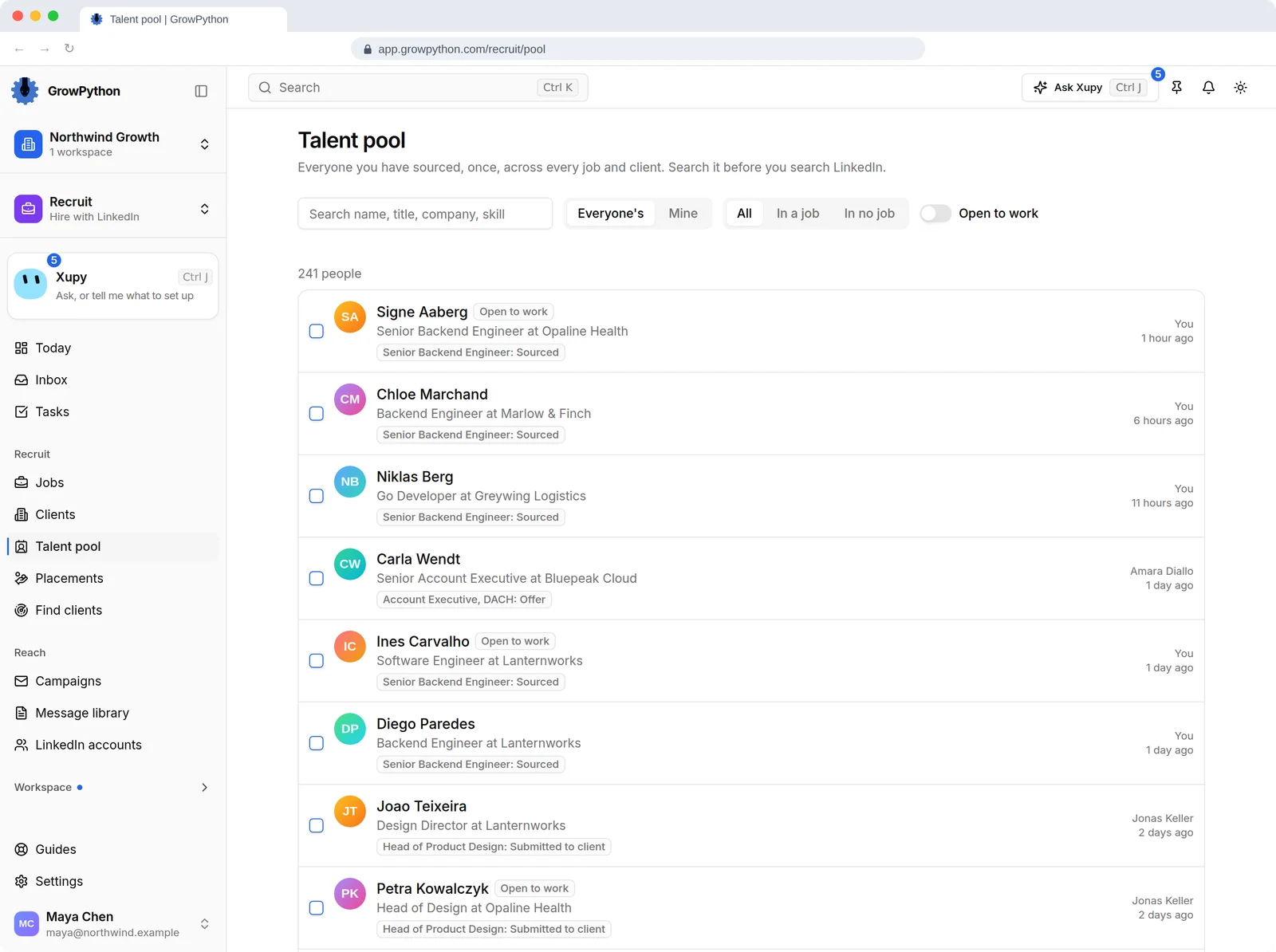
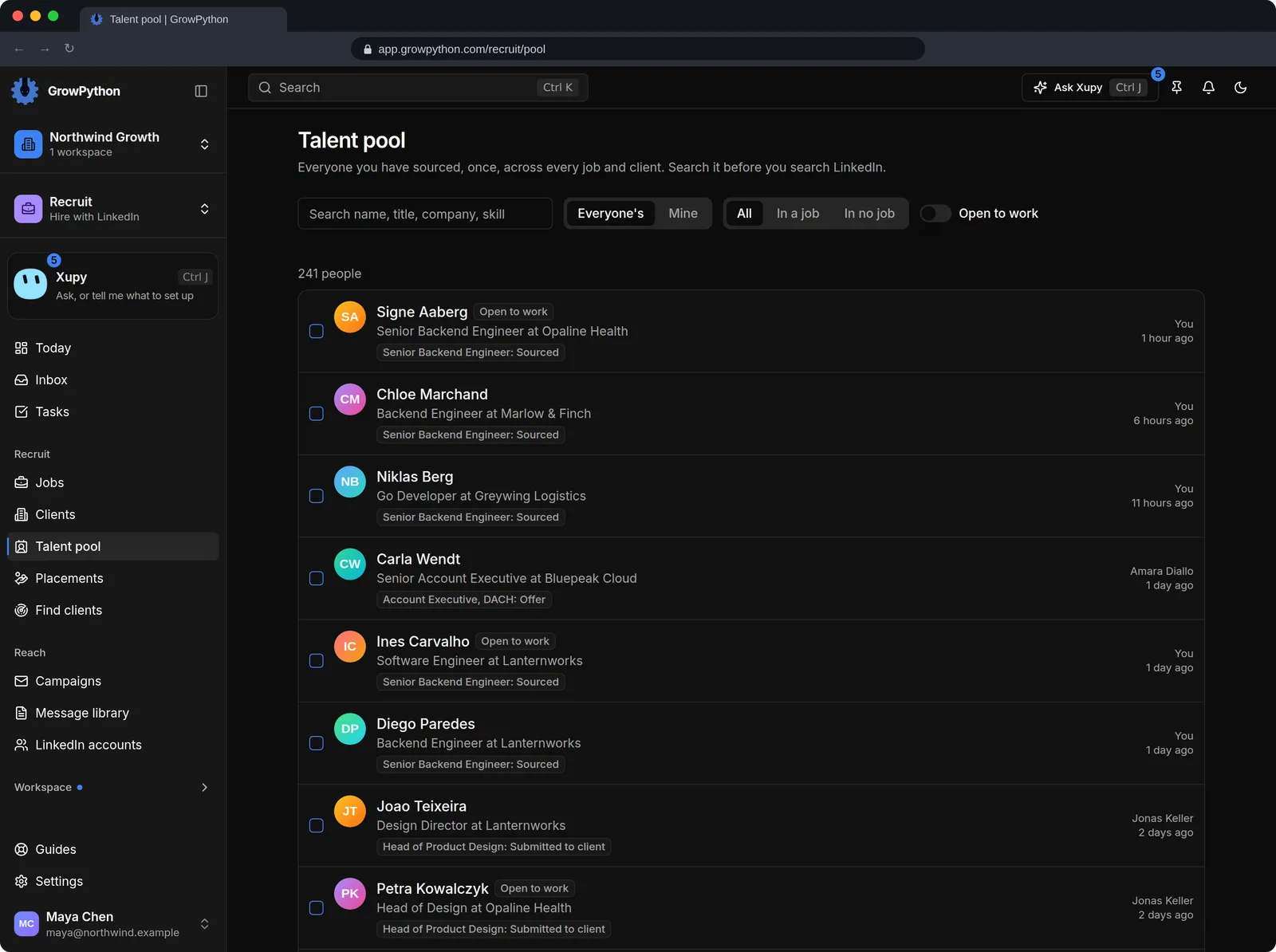
    The Talent pool page with 241 people. Each row shows a name, an Open to work badge where it applies, the role and company, the job and stage the person is in, such as Senior Backend Engineer: Sourced, and on the right the owner and when the person was last touched. Above are a search box for name, title, company or skill, an Everyone's and Mine switch, filters for All, In a job and In no job, and an Open to work switch.The Talent pool page with 241 people. Each row shows a name, an Open to work badge where it applies, the role and company, the job and stage the person is in, such as Senior Backend Engineer: Sourced, and on the right the owner and when the person was last touched. Above are a search box for name, title, company or skill, an Everyone's and Mine switch, filters for All, In a job and In no job, and an Open to work switch. Shown in the dark theme.
  9. Placements and fees

    A placement's fee and the end of its guarantee are worked out from the client's terms, and you can change either. See fees by month, by client and by recruiter, and what is not paid yet.
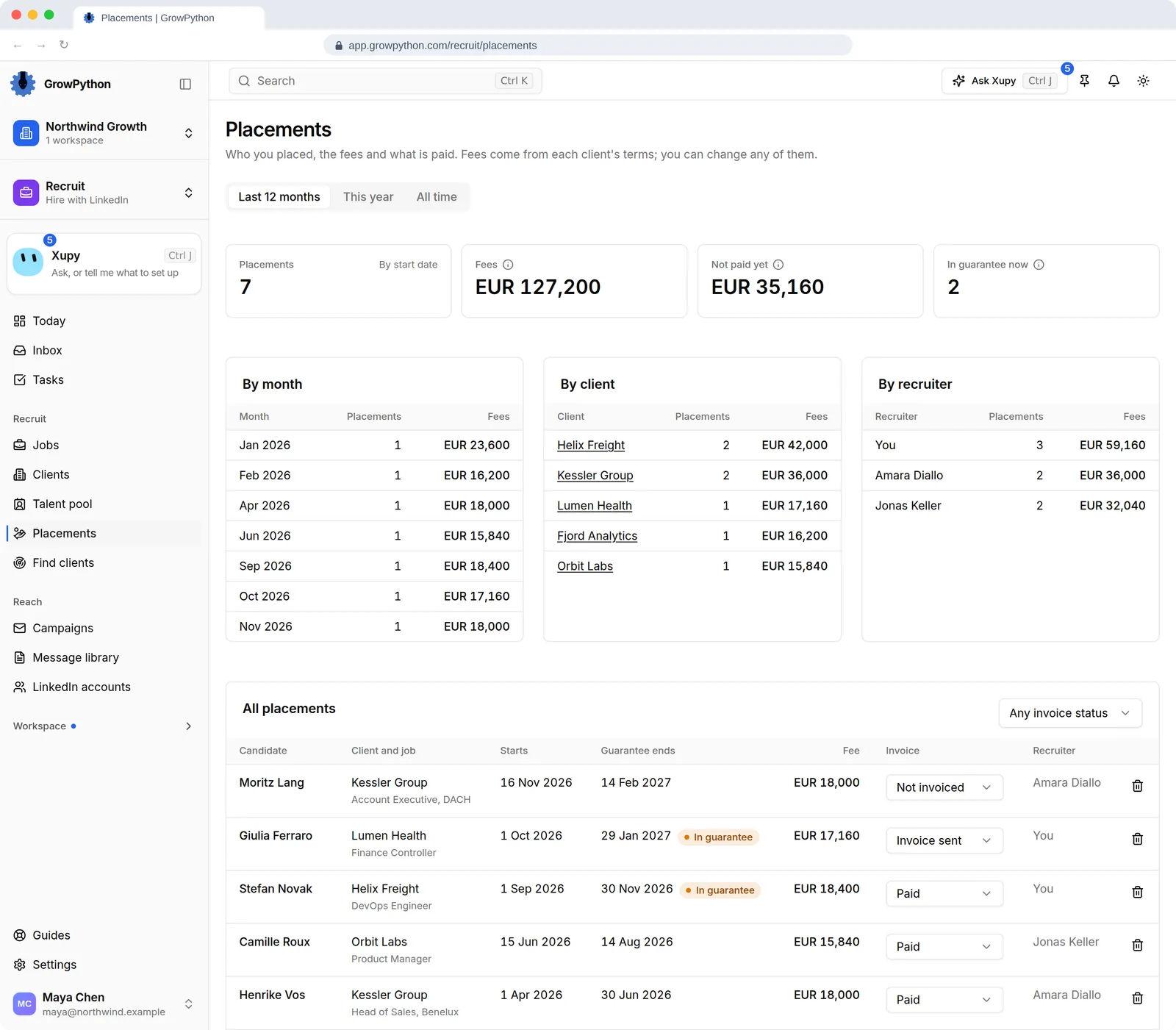
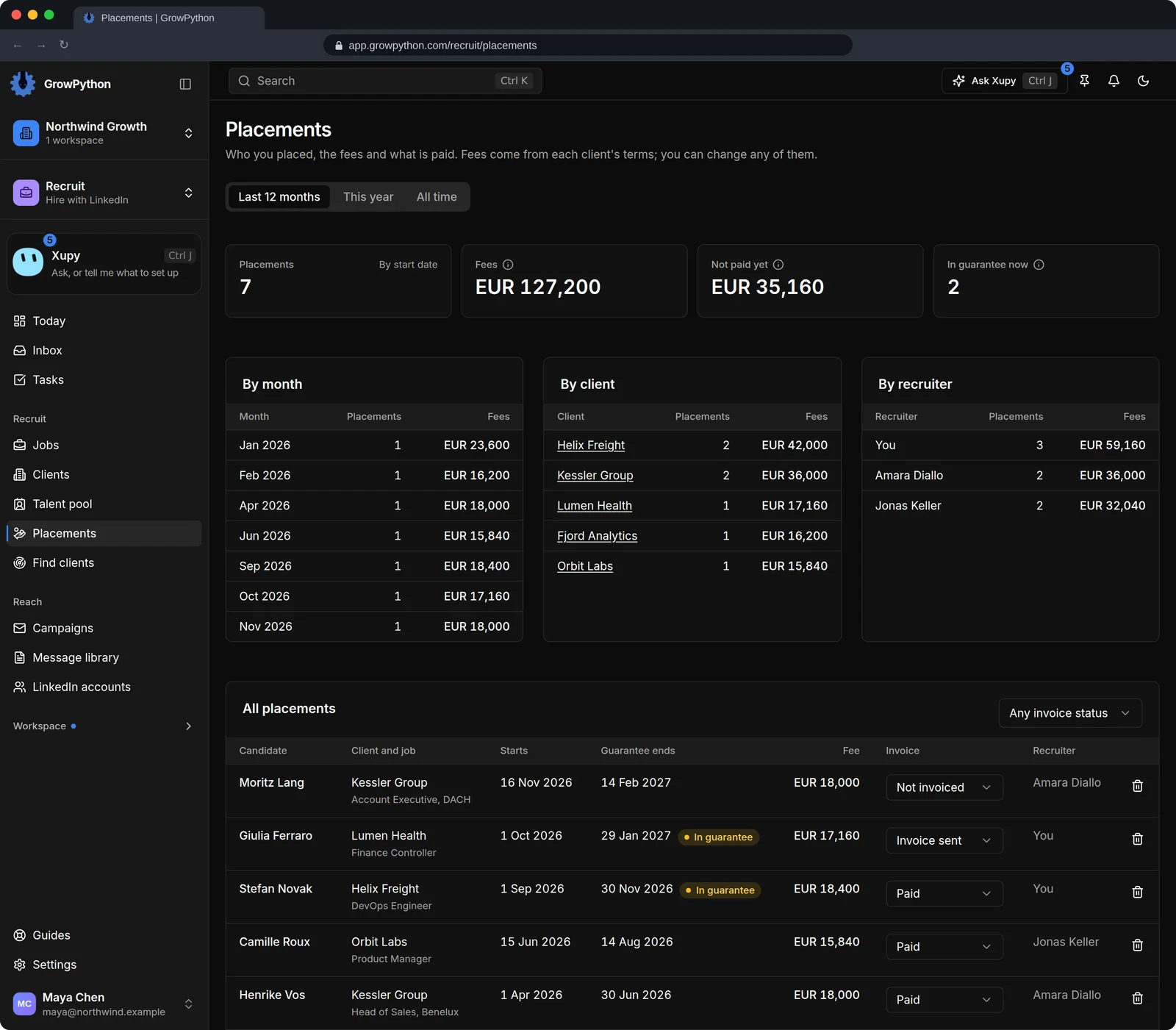
    The Placements page for the last 12 months. Four tiles show 7 placements, fees of EUR 127,200, EUR 35,160 not paid yet and 2 placements in guarantee now. Three tables break the fees down by month, by client and by recruiter. Below, a list of all placements shows the candidate, the client and job, the start date, the end of the guarantee with an In guarantee badge, the fee, an invoice status menu set to Not invoiced, Invoice sent or Paid, and the recruiter.The Placements page for the last 12 months. Four tiles show 7 placements, fees of EUR 127,200, EUR 35,160 not paid yet and 2 placements in guarantee now. Three tables break the fees down by month, by client and by recruiter. Below, a list of all placements shows the candidate, the client and job, the start date, the end of the guarantee with an In guarantee badge, the fee, an invoice status menu set to Not invoiced, Invoice sent or Paid, and the recruiter. Shown in the dark theme.
The Jobs page of a demo recruiting workspace. Five job cards show the job title, the client company, the place, the number of candidates and the hiring manager, with a bar and a count for each stage from Sourced to Client rejected. Two jobs are marked Live on LinkedIn, and the jobs are Open, Paused or Closed. Above the list are filters for status and client, and Settings and New job buttons.The Jobs page of a demo recruiting workspace. Five job cards show the job title, the client company, the place, the number of candidates and the hiring manager, with a bar and a count for each stage from Sourced to Client rejected. Two jobs are marked Live on LinkedIn, and the jobs are Open, Paused or Closed. Above the list are filters for status and client, and Settings and New job buttons. Shown in the dark theme.

How it works

Recruit

  1. Step 1 of 4

    Write the job

    Give the job its title, must-haves, nice-to-haves, location, years and pay, and choose the LinkedIn account it searches with.

  2. Step 2 of 4

    Source and check the fit

    Search LinkedIn from the job, read the fit on each person, tick the ones you want and add them to the pipeline. That contacts nobody.

  3. Step 3 of 4

    Reach out when you decide to

    Start a sequence for the job. It is an ordinary campaign on the job's own list, and nothing goes out until you press Start.

  4. Step 4 of 4

    Move candidates on

    Screen, send an interview booking link, shortlist for the client in agency mode, and record the hire or the placement.

Limits and guardrails

What it will not do, and what you should know before you rely on it.

  • Private beta. The suite is off by default and the GrowPython team switches it on for one workspace at a time. It has no public price yet, and asking for an invite does not promise one.
  • Recruit needs a connected LinkedIn account of your own. Sales Navigator and LinkedIn Recruiter searches need that seat on your account. Without it the ordinary LinkedIn search is offered.
  • Every LinkedIn search and profile refresh is counted against a daily budget per LinkedIn account. When the budget is used up the request is refused, nothing is retried, and the budget resets at 00:00 UTC.
  • Adding people to a job contacts nobody. Outreach is an ordinary campaign that a person starts, with the same daily limits, working hours and message checks as any other campaign.
  • The fit is worked out by rules from what a LinkedIn profile lists, so it is only as good as the profile. With too little to judge, the fit is shown as unknown. It is not a judgement of the person, and GrowPython promises no hires.
  • AI is used in two places, both only when you ask: one sentence about a fit, and a draft of a submission note. Both use AI credits.
  • Posting a job on LinkedIn is a draft first, then Publish. Only free postings are offered, and applicants are imported when you ask.
  • An interview booking link works once and expires after 14 days. You send it yourself.
  • Clients, the talent pool, placements, shortlists and Find clients need agency mode, which an owner or admin switches on for the workspace.
  • Sharing a shortlist does not email the client: you send the link. A link expires after 14 days unless you choose otherwise, and you can revoke it. A candidate's email, phone, LinkedIn profile, messages, notes and tags are never on the client page.
  • Placements record an invoice status as a plain field: Not invoiced, Invoice sent or Paid. GrowPython makes no invoice and takes no payment.
  • Recruit is not an applicant tracking system with a careers page or offer letters, and LinkedIn is the only place it searches and posts.

Recruit

More screens

  • Every open role, with how many candidates sit at each stage.

  • One board per job, with the fit and the missing must-haves on every card.

  • Choose what the client sees, share one private link, and read the answers next to each candidate.

  • The client answers on one page, with no account, and names can stay hidden until asked for.

  • Each client with its fee terms, guarantee, open jobs and owner.

  • Everyone the team has sourced, once, across every job and client.

  • Placements, fees from each client's terms, and what is still unpaid.

Beta invite

Ask for an invite to Recruit

The suites open by invitation while they are in private beta. Tell us which one you want and what you do, and we will reply by email.

  • Anyone can askFounders, recruiters, job seekers and teams already on GrowPython.
  • No promise of a dateWe take workspaces in a few at a time, so a request is not a promise of an invite.
  • No price yetThe suites have no public price, and asking costs nothing.
Request an invitePrivate beta
Which suite?

FAQ

Questions

Does it message candidates by itself?

No. Adding people to a job contacts nobody. Outreach is a campaign that you start, with the same daily limits and working hours as any other campaign in GrowPython.

Do I need LinkedIn Recruiter?

No. The ordinary LinkedIn search works with any connected account. A Sales Navigator or Recruiter seat on your own account adds filters such as seniority, years, required skills and open to work.

How is the fit worked out? Is it AI?

By rules, from the job's must-haves, the title, the years, the nice-to-haves and the location, with the evidence shown for each must-have. AI writes one sentence about the fit only when you ask.

What does my client see on a shortlist?

Only the fields you choose among headline, current role, location, years, your submission note, the fit summary and skills. Never the email, phone, LinkedIn profile, messages, notes, tags or owner. Names can stay hidden until the client asks for them.

Does the client need an account?

No. The client opens one private link. It expires, after 14 days by default, and you can revoke it at any time.

How do I get the Recruit suite, and what does it cost?

It is in private beta. Ask for an invite with the form on this page and, if we can take you in, the GrowPython team switches the suite on for your workspace. A request is not a promise of an invite or of a date. The suite has no public price yet, so none is stated here.

The platform is open today.

Lead discovery, LinkedIn and email outreach, booking, the workspace and Xupy are live. The suites are added to a workspace by invitation.

5-day free trial for new customers. The suites are in private beta and have no public price yet.