Skip to content

Content AI

An AI LinkedIn content tool that drafts and you approve

Watch the trends in your field, turn one into a post draft in your own voice, review it, and schedule it. Engagement likes and comments on your LinkedIn feed within a daily limit you set.

Does the job ofa content writing toola post scheduler

What it does

Trends, drafts and engagement for your LinkedIn presence.

  1. One setup

    Keywords, audience, voice, schedule and limits are set once and shared by Trends, Posts and Engagement.
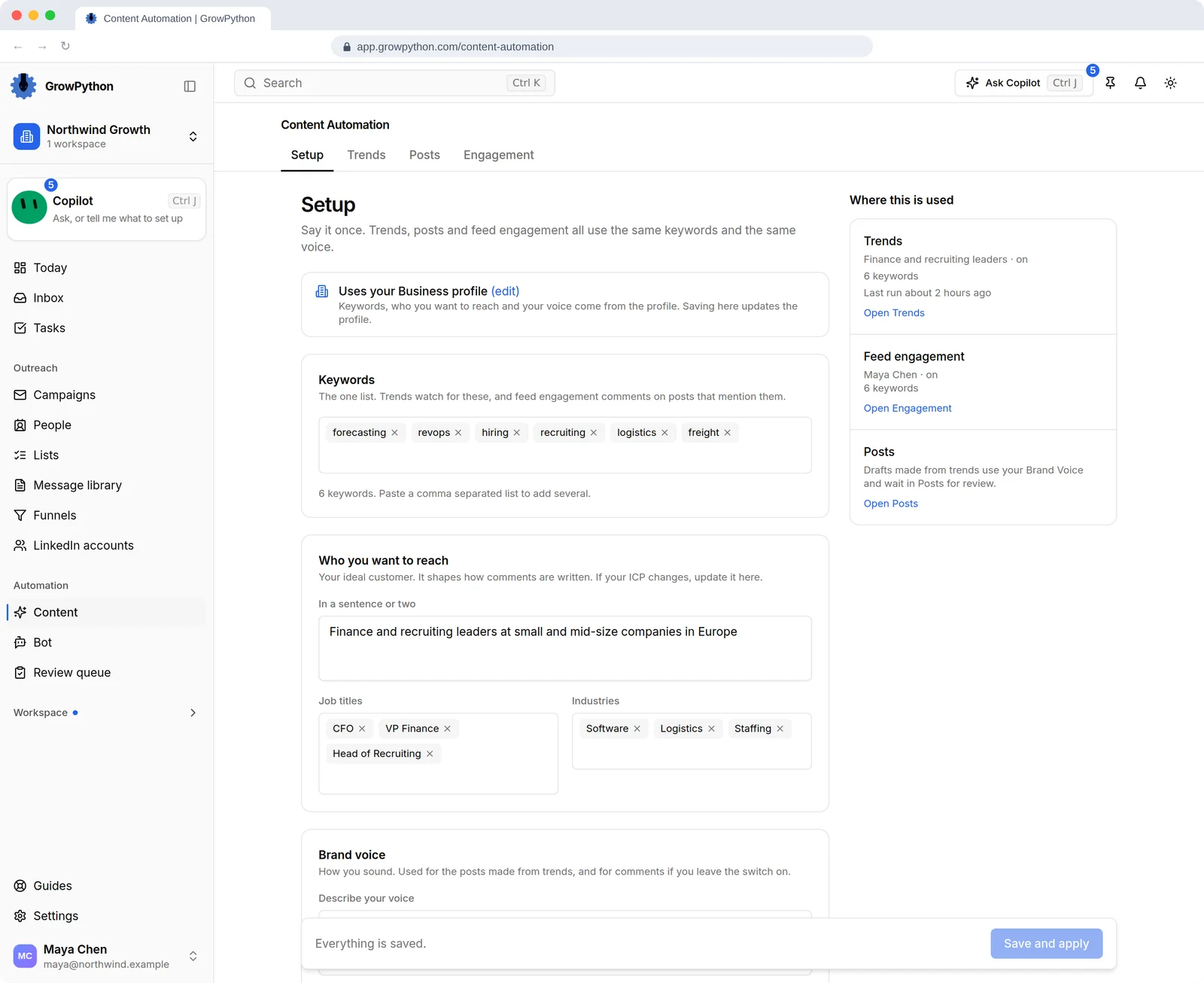
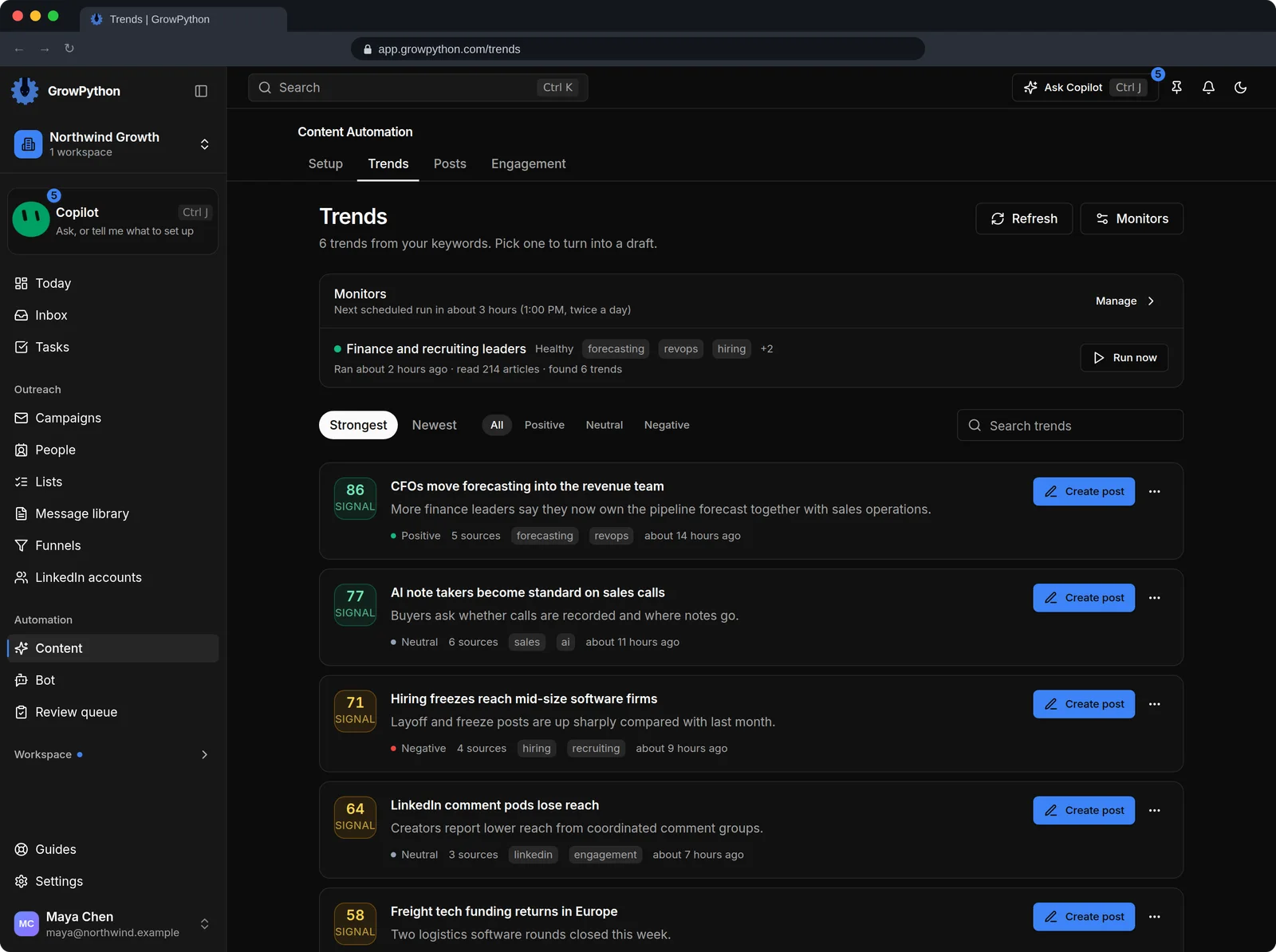
    The Setup tab of Content Automation with a keyword list such as forecasting and revops, a sentence describing the audience with job titles CFO and VP Finance and industries, a Brand voice section, and a Where this is used panel showing Trends and Feed engagement are on.The Setup tab of Content Automation with a keyword list such as forecasting and revops, a sentence describing the audience with job titles CFO and VP Finance and industries, a Brand voice section, and a Where this is used panel showing Trends and Feed engagement are on. Shown in the dark theme.
  2. Trends

    See what the monitors found and whether they are healthy, with one action per trend: Create post.
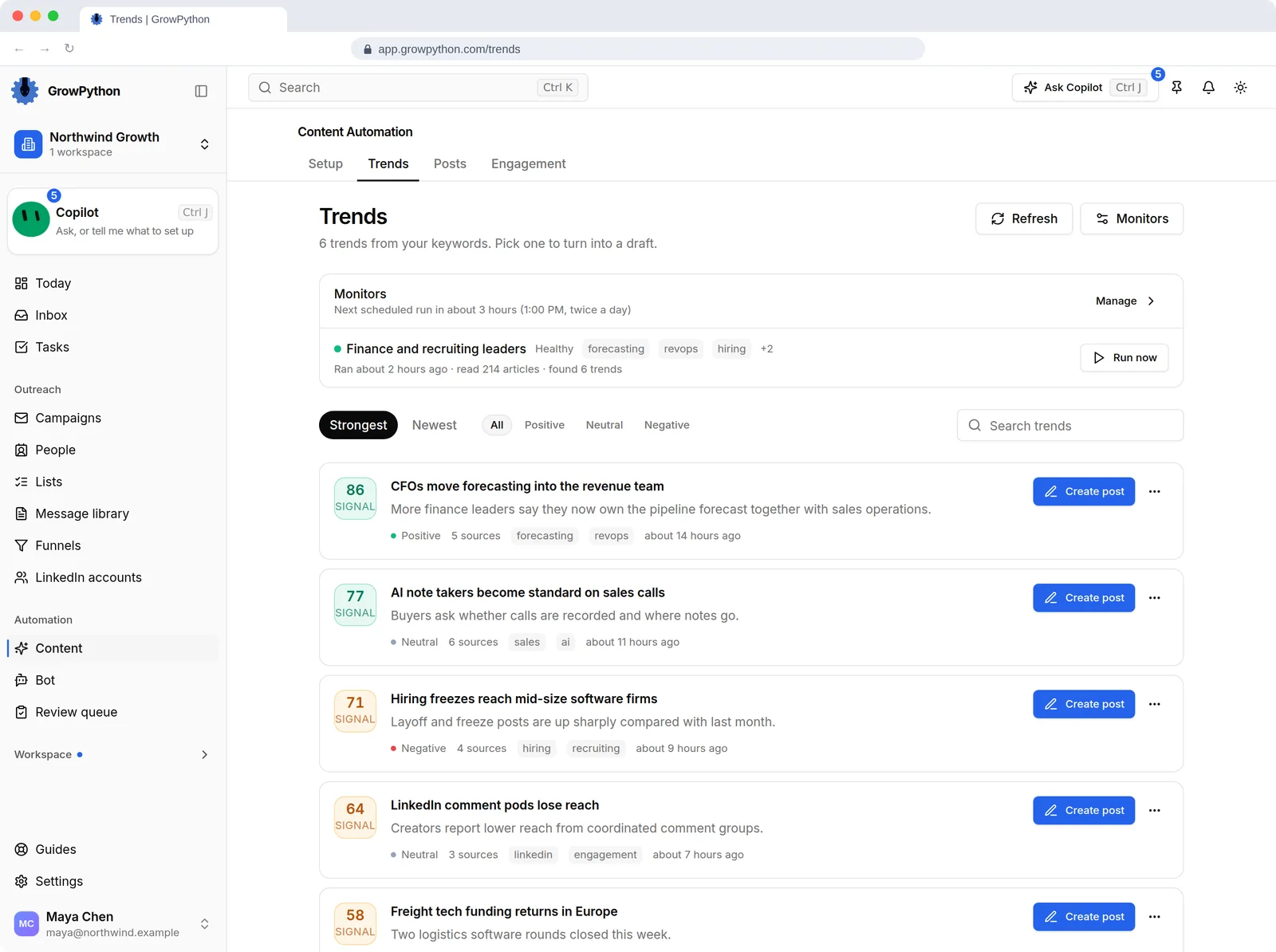
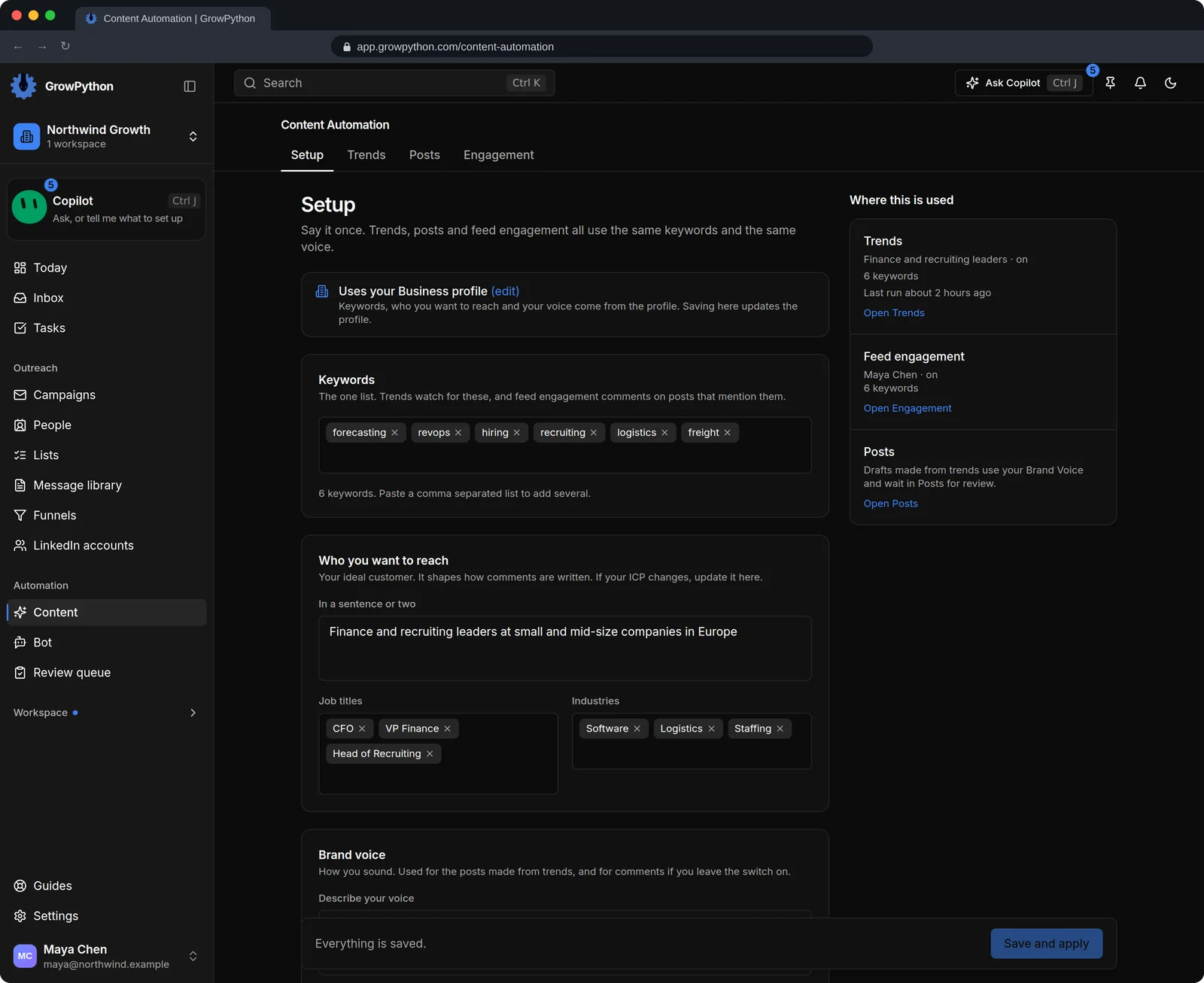
    The Trends tab of Content Automation. A monitor called Finance and recruiting leaders shows it ran about two hours ago and found 6 trends. Below it are trends ranked by signal score, such as CFOs move forecasting into the revenue team at 86, each with sentiment, number of sources, keywords and a Create post button.The Trends tab of Content Automation. A monitor called Finance and recruiting leaders shows it ran about two hours ago and found 6 trends. Below it are trends ranked by signal score, such as CFOs move forecasting into the revenue team at 86, each with sentiment, number of sources, keywords and a Create post button. Shown in the dark theme.
  3. Posts you review

    A draft moves from review to scheduled to published. You read, refine, approve or reject. Where a fact is missing the draft leaves a placeholder and says so.
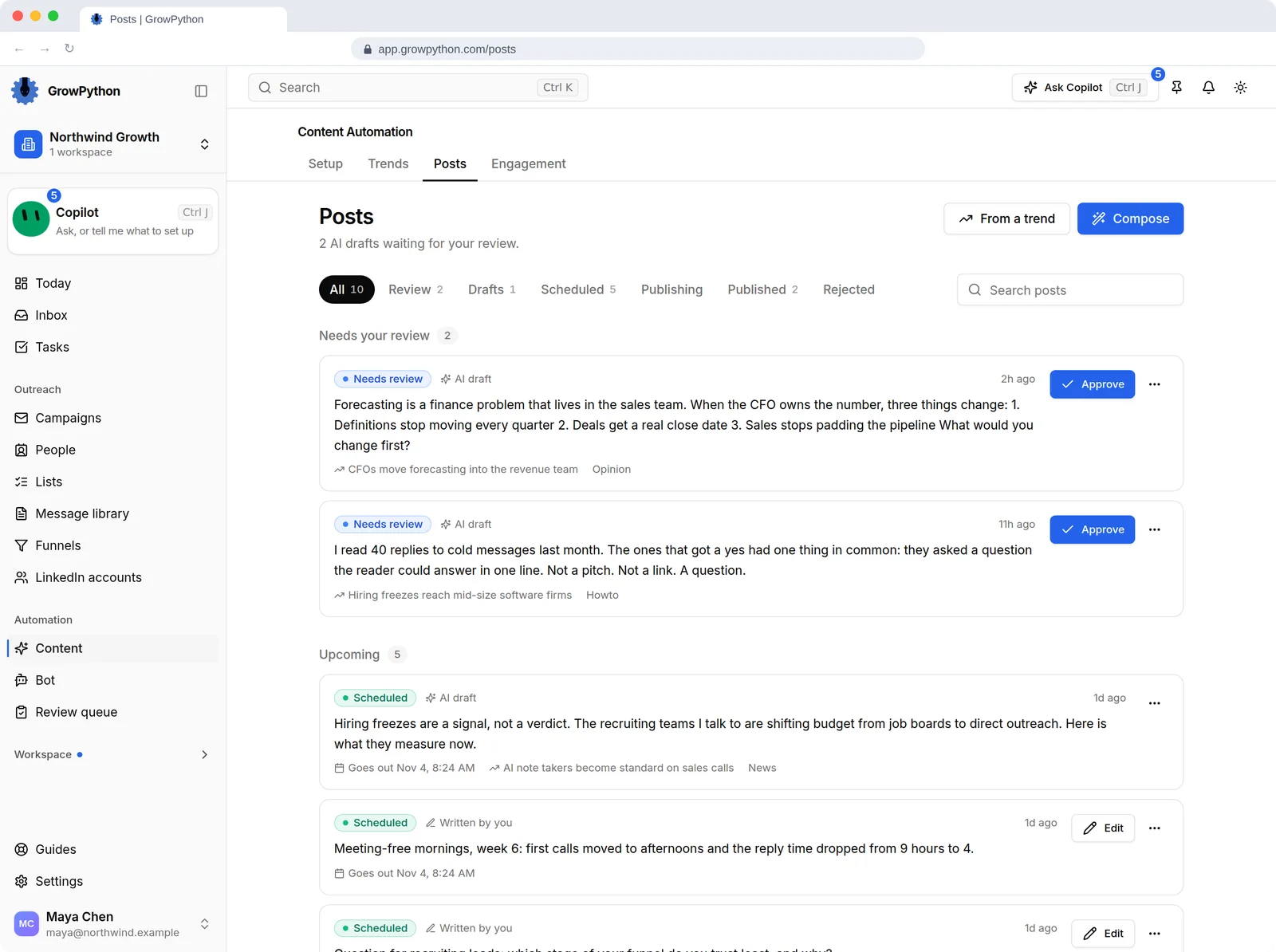
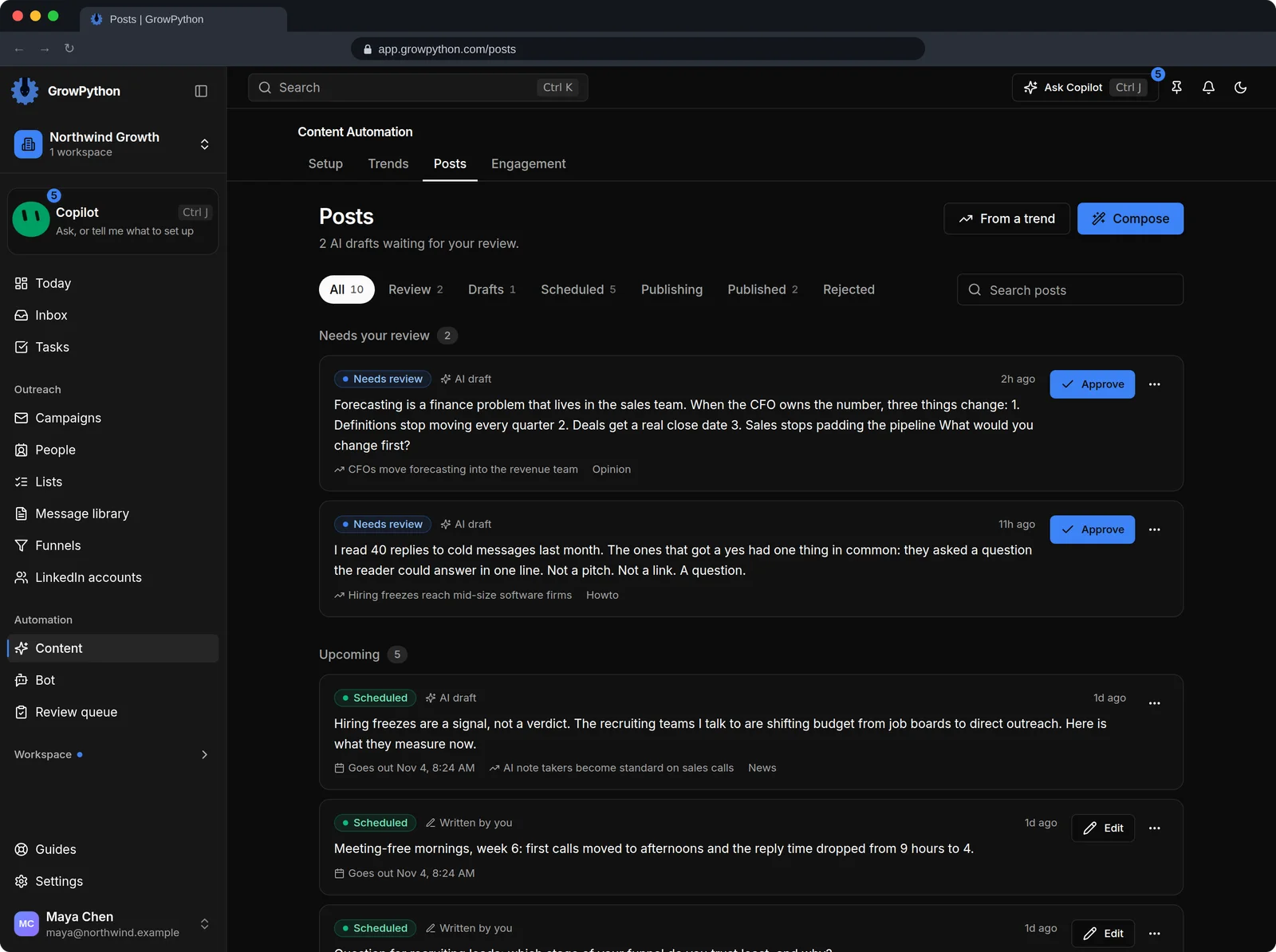
    The Posts tab of Content Automation with filter tabs All, Review, Drafts, Scheduled, Publishing, Published and Rejected. Two AI drafts are marked Needs review with Approve buttons, followed by upcoming scheduled posts with their send times.The Posts tab of Content Automation with filter tabs All, Review, Drafts, Scheduled, Publishing, Published and Rejected. Two AI drafts are marked Needs review with Approve buttons, followed by upcoming scheduled posts with their send times. Shown in the dark theme.
  4. Engagement

    Likes and comments on your LinkedIn feed, picked by your keywords, within a daily limit from 1 to 14 (default 10).
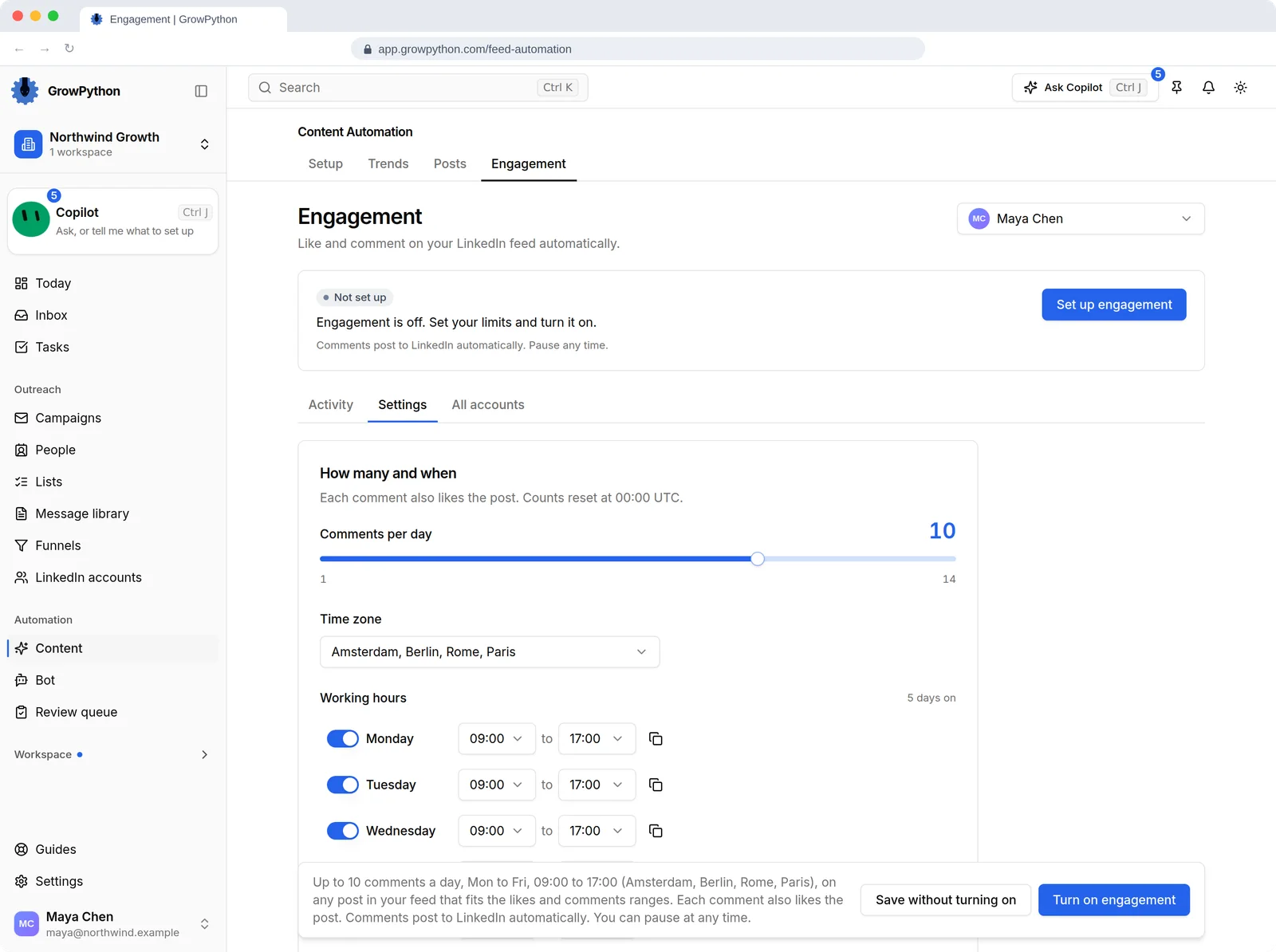
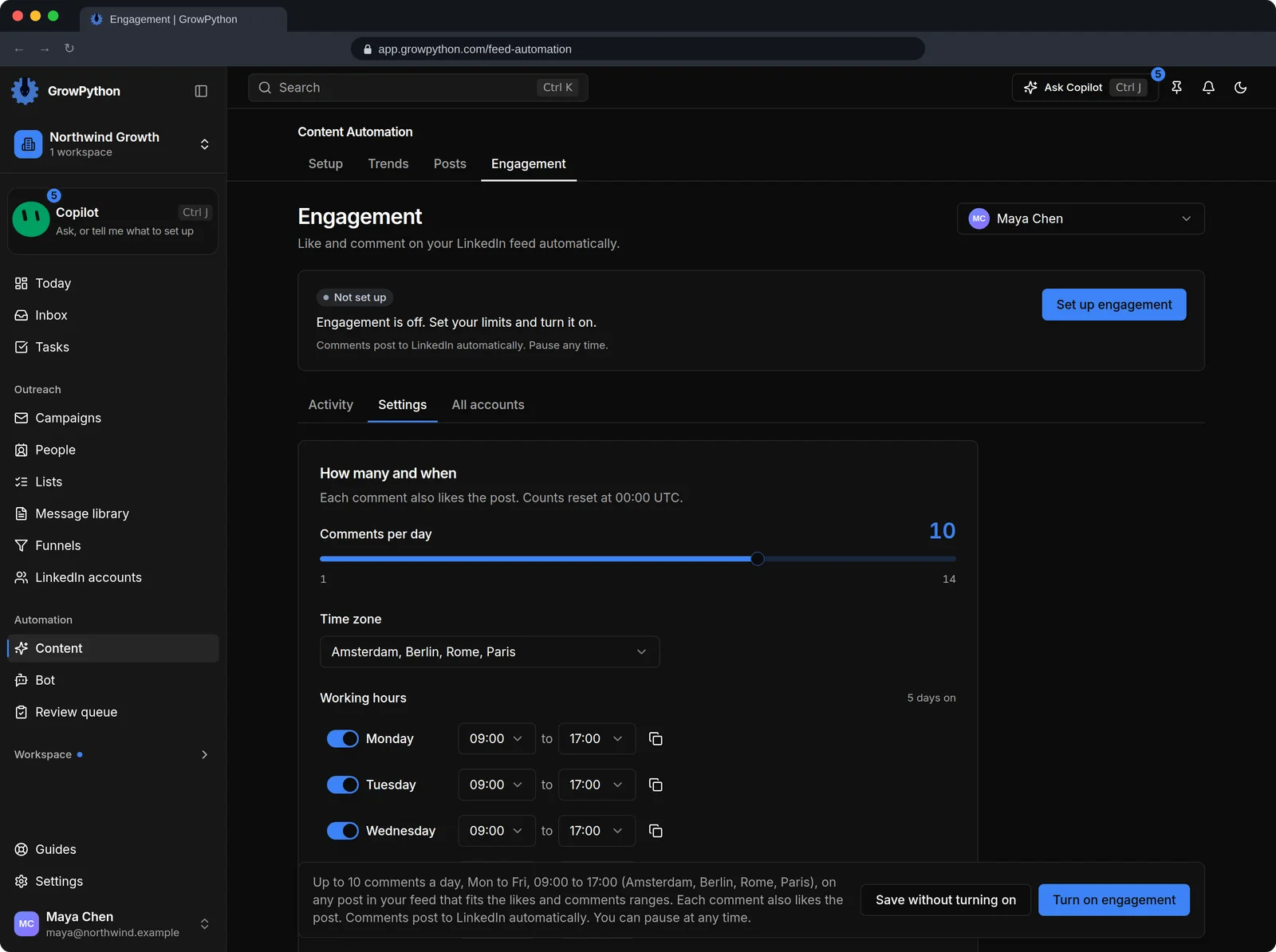
    The Engagement tab of Content Automation for the account Maya Chen. A status strip says it is not set up yet, and the Settings panel shows a Comments per day slider at 10, a time zone and working hours Monday to Friday.The Engagement tab of Content Automation for the account Maya Chen. A status strip says it is not set up yet, and the Settings panel shows a Comments per day slider at 10, a time zone and working hours Monday to Friday. Shown in the dark theme.
  5. Your voice and red lines

    The Business profile holds your tone, words to avoid and claims never to make. Content automation respects them.

    The Posts tab of Content Automation with filter tabs All, Review, Drafts, Scheduled, Publishing, Published and Rejected. Two AI drafts are marked Needs review with Approve buttons, followed by upcoming scheduled posts with their send times.The Posts tab of Content Automation with filter tabs All, Review, Drafts, Scheduled, Publishing, Published and Rejected. Two AI drafts are marked Needs review with Approve buttons, followed by upcoming scheduled posts with their send times. Shown in the dark theme.
  6. Ask the Copilot

    The Copilot can draft a post, create one from a trend and revise one, as drafts for you to approve.

    The Posts tab of Content Automation with filter tabs All, Review, Drafts, Scheduled, Publishing, Published and Rejected. Two AI drafts are marked Needs review with Approve buttons, followed by upcoming scheduled posts with their send times.The Posts tab of Content Automation with filter tabs All, Review, Drafts, Scheduled, Publishing, Published and Rejected. Two AI drafts are marked Needs review with Approve buttons, followed by upcoming scheduled posts with their send times. Shown in the dark theme.
The Setup tab of Content Automation with a keyword list such as forecasting and revops, a sentence describing the audience with job titles CFO and VP Finance and industries, a Brand voice section, and a Where this is used panel showing Trends and Feed engagement are on.The Setup tab of Content Automation with a keyword list such as forecasting and revops, a sentence describing the audience with job titles CFO and VP Finance and industries, a Brand voice section, and a Where this is used panel showing Trends and Feed engagement are on. Shown in the dark theme.

How it works

Content AI

  1. Step 1 of 4

    Fill in Setup

    Keywords, your audience, your voice and a daily limit.

  2. Step 2 of 4

    Open Trends

    Pick a trend and press Create post.

  3. Step 3 of 4

    Review the draft

    Read it, refine it, fill any placeholder and approve it.

  4. Step 4 of 4

    Schedule it

    Choose the LinkedIn account and the time.

Limits and guardrails

What it will not do, and what you should know before you rely on it.

  • Engagement comments post automatically. There is no approval step on that page, so keep the daily limit low and your keywords tight, and pause it any time.
  • Posts never publish without a person approving and scheduling them.
  • AI drafts can be wrong or flat. Read each one, and replace any placeholder with a real fact before you post.
  • Automated likes and comments are activity on your LinkedIn account, and LinkedIn's rules on automation apply to them too.
  • No tool can promise reach or replies from content.

Content AI

More screens

  • See what is trending for your audience, then turn one into a draft.

  • Say it once. Trends, posts and engagement use the same setup.

  • Set how many comments a day, and when.

FAQ

Questions

Does it post for me without asking?

Posts need your approval and a schedule. Engagement is different: it likes and comments on your feed automatically, within the daily limit you set.

Will the posts sound like me?

Drafts use the voice, tone and red lines in your Business profile. You still read and edit each one.

Where do trends come from?

From monitors that follow your keywords. The Trends page shows what they found and whether each monitor is healthy.

Is there a daily limit on comments?

Yes. 1 to 14 a day, with 10 as the default.

Ready to run client acquisition from one place?

Start your free trial, connect an account and build a small list first.

5-day free trial for new customers