Skip to content

Workspace

A sales workspace with docs, tasks and files

Docs, Canvas boards, Files, Messages and Tasks sit next to your campaigns and your CRM, so the plan, the playbook and the follow-up live where the work happens.

Does the job ofa wiki or docs toola task listteam chat

What it does

Docs, Canvas, Files, Messages and Tasks beside your campaigns.

  1. Docs

    A tree of documents for ICP notes, playbooks and SOPs, with live co-editing. Import an SOP from a PDF, Word, Markdown or text file up to 20 MB, or from a public link.
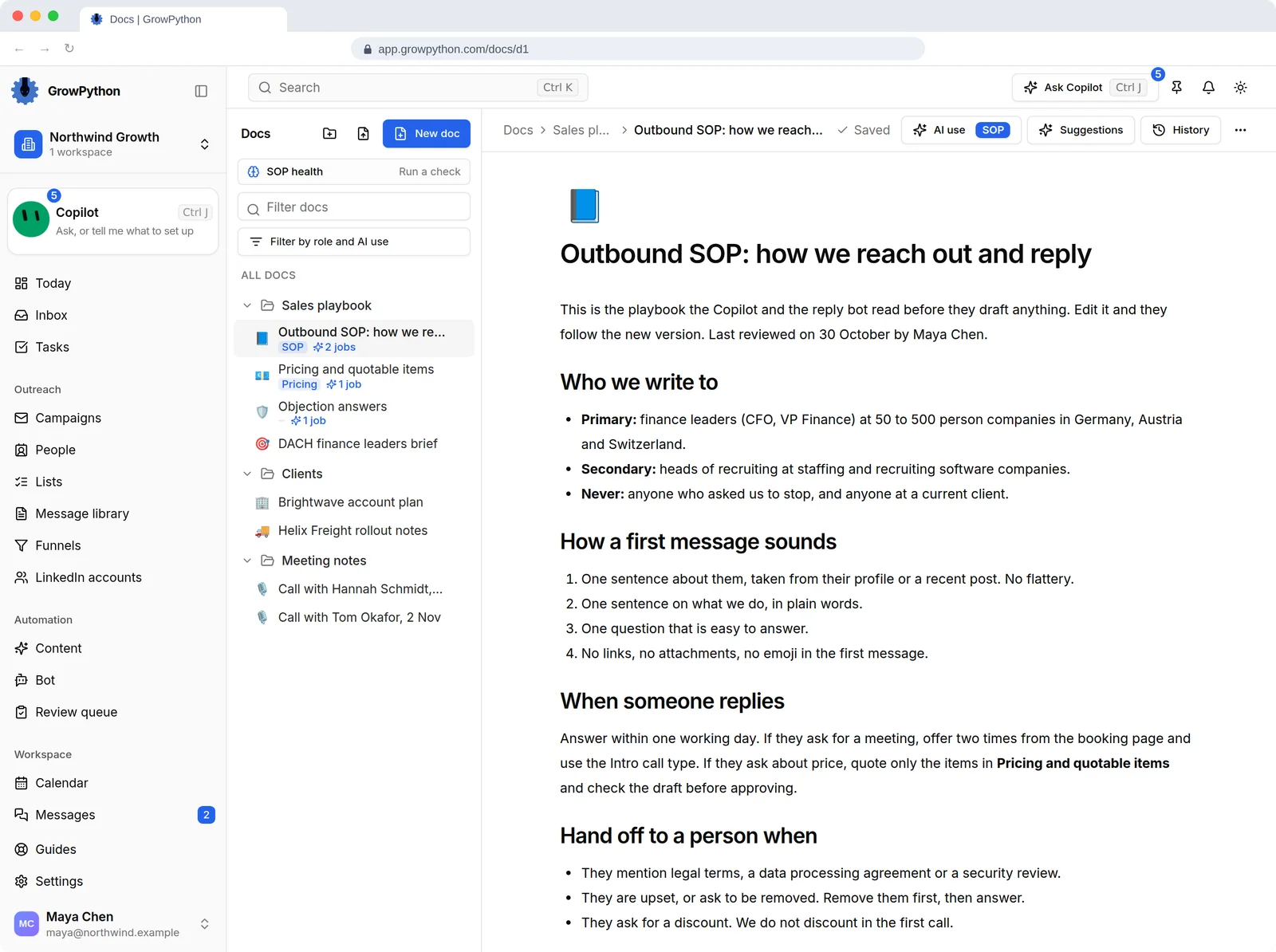
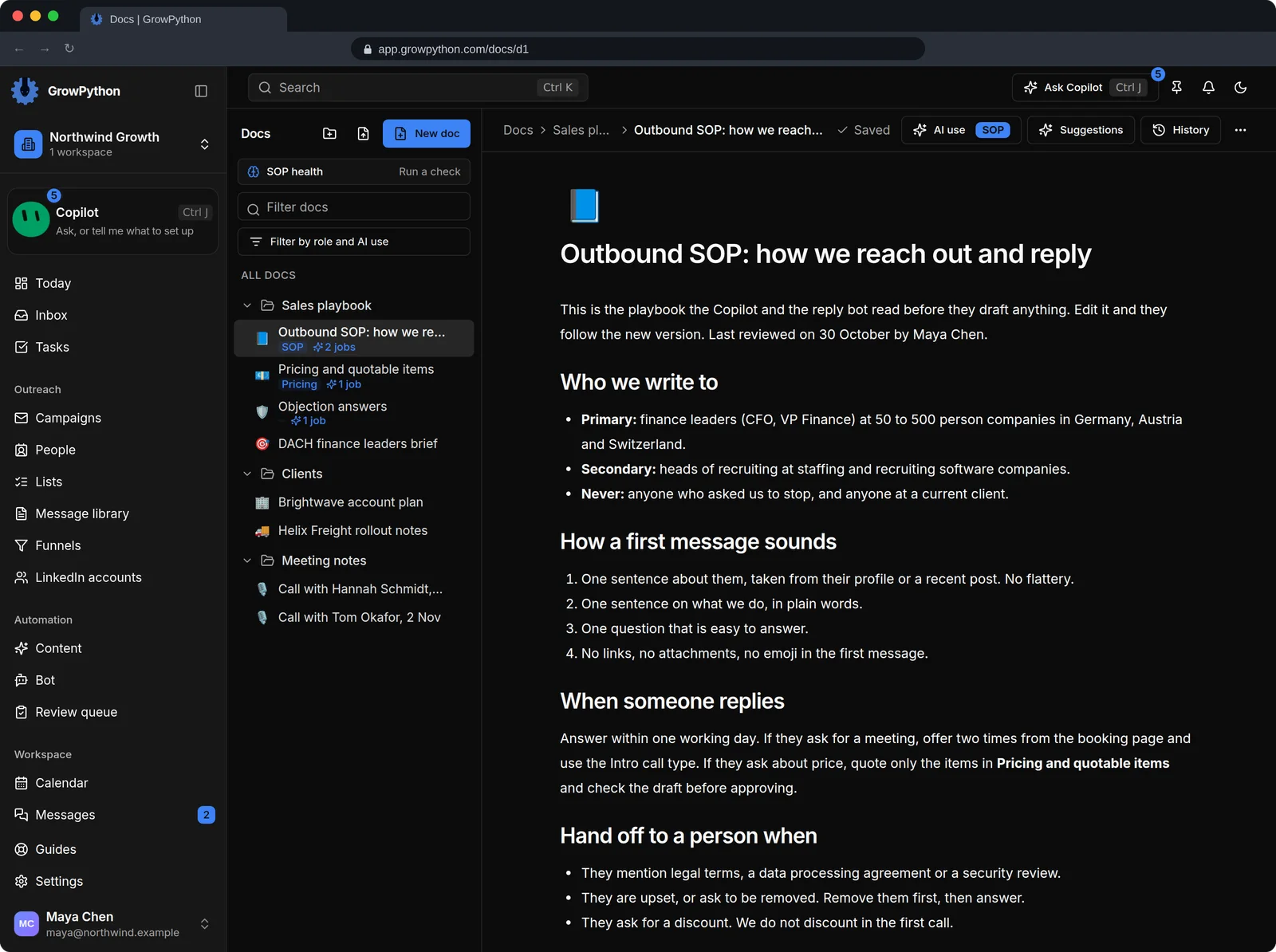
    The Docs editor open on a document called Outbound SOP: how we reach out and reply. A left tree lists folders Sales playbook, Clients and Meeting notes with documents tagged SOP and Pricing and showing how many AI jobs read them. The page shows headings such as Who we write to, How a first message sounds and When someone replies, with bullet and numbered lists, and AI use, Suggestions and History buttons at the top.The Docs editor open on a document called Outbound SOP: how we reach out and reply. A left tree lists folders Sales playbook, Clients and Meeting notes with documents tagged SOP and Pricing and showing how many AI jobs read them. The page shows headings such as Who we write to, How a first message sounds and When someone replies, with bullet and numbered lists, and AI use, Suggestions and History buttons at the top. Shown in the dark theme.
  2. Canvas

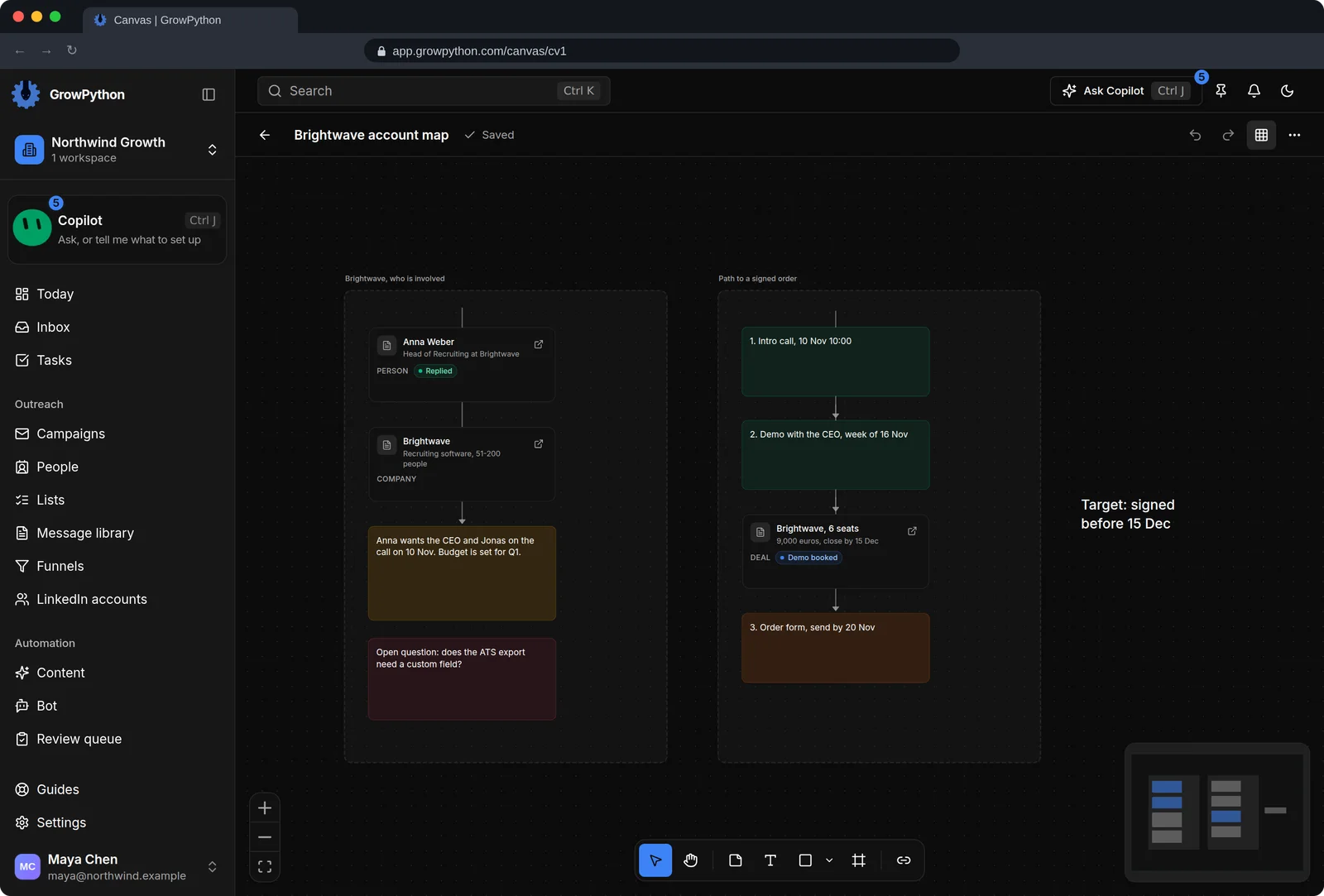
    A board for planning campaigns and content on one surface.
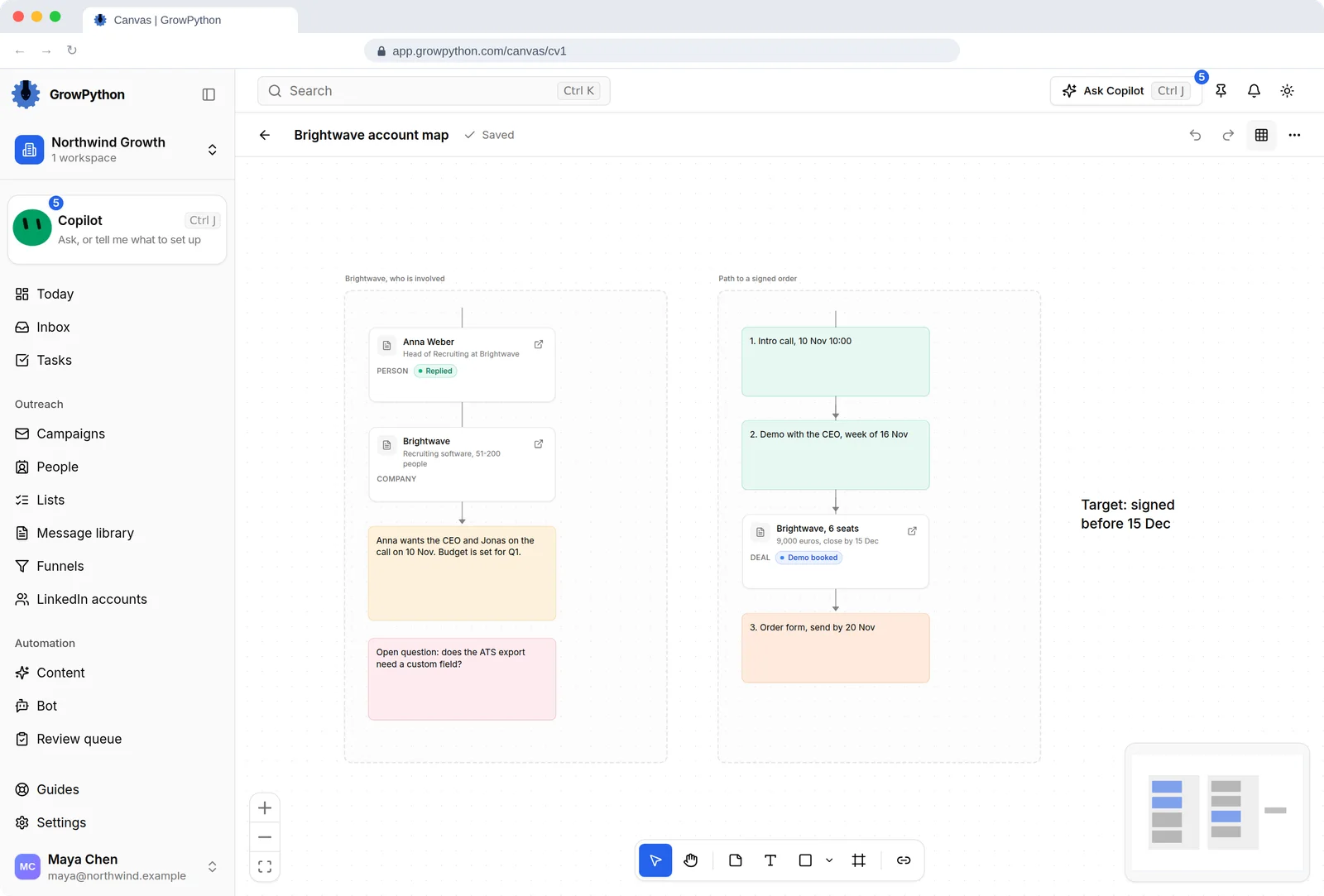
    A Canvas board called Brightwave account map with two frames. One frame holds a person card for Anna Weber, a company card for Brightwave and yellow and pink notes. The other frame shows a path to a signed order with green notes, a deal card for Brightwave with 6 seats at the Demo booked stage, and an orange note, joined by arrows.A Canvas board called Brightwave account map with two frames. One frame holds a person card for Anna Weber, a company card for Brightwave and yellow and pink notes. The other frame shows a path to a signed order with green notes, a deal card for Brightwave with 6 seats at the Demo booked stage, and an orange note, joined by arrows. Shown in the dark theme.
  3. Files

    Folders, drag and drop upload and a preview. Search matches the text inside PDFs, documents and spreadsheets.
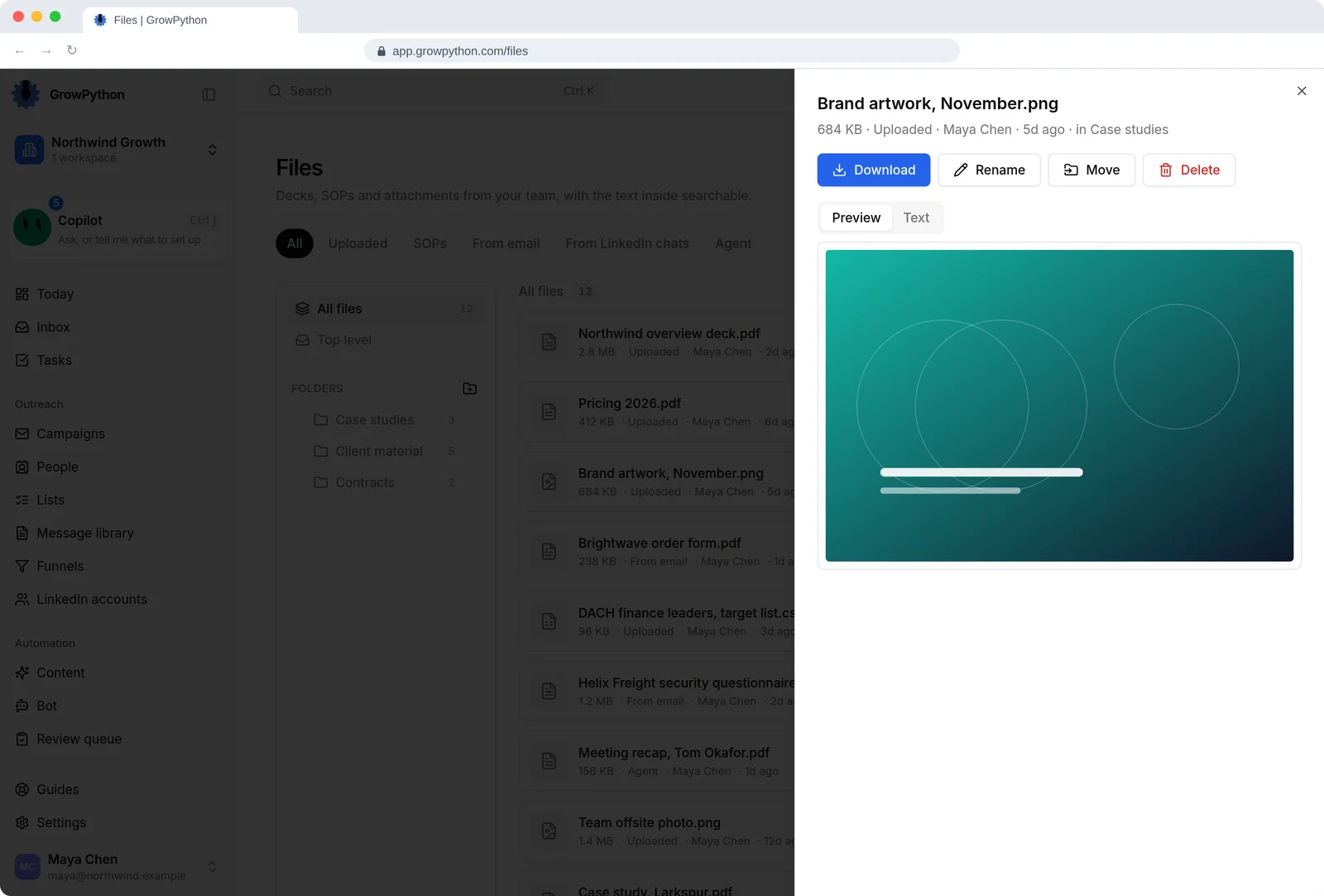
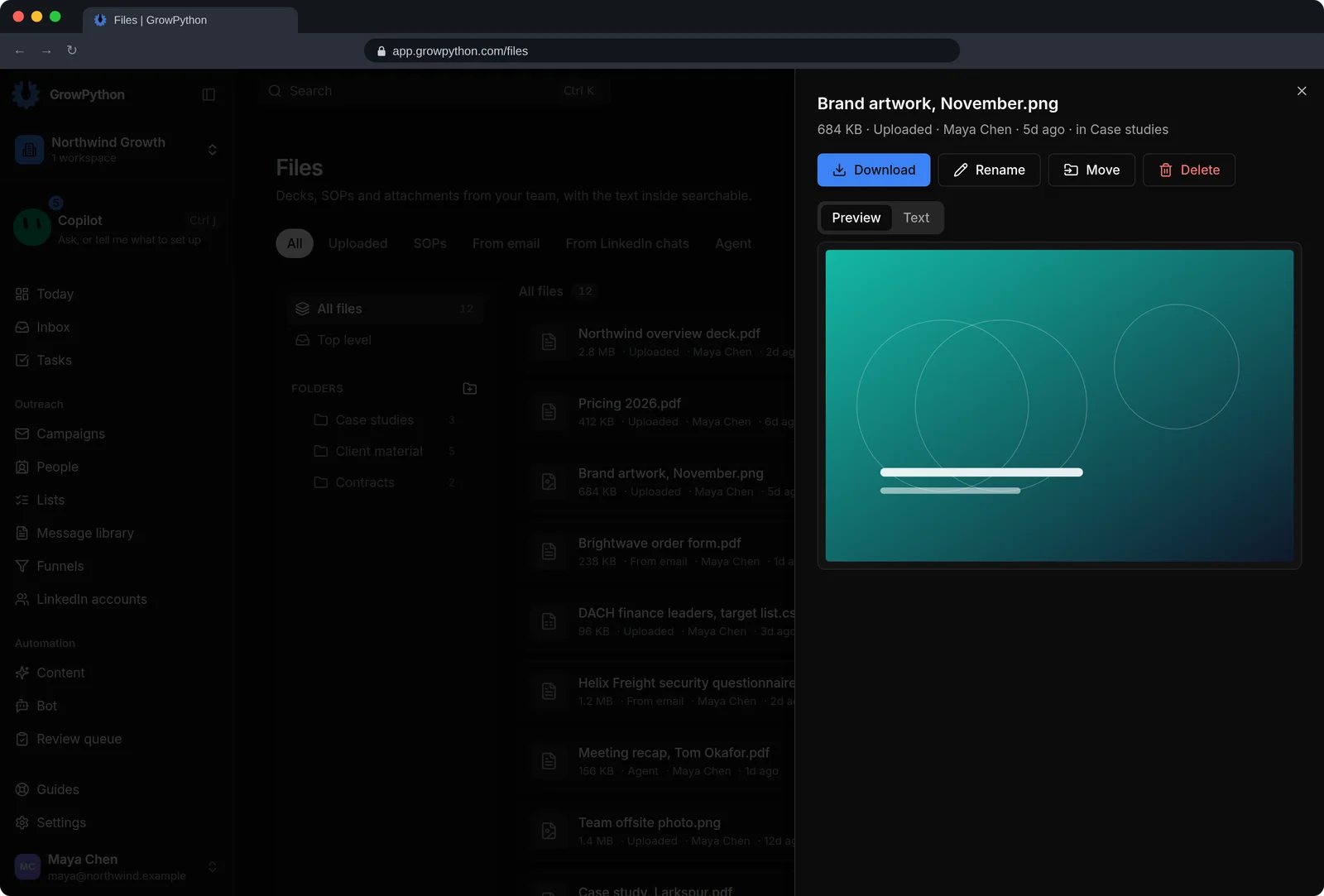
    The Files page with source tabs, folders named Case studies, Client material and Contracts, and a list of files such as Northwind overview deck.pdf and Pricing 2026.pdf. A preview panel is open on an image called Brand artwork, November.png with Download, Rename, Move and Delete buttons.The Files page with source tabs, folders named Case studies, Client material and Contracts, and a list of files such as Northwind overview deck.pdf and Pricing 2026.pdf. A preview panel is open on an image called Brand artwork, November.png with Download, Rename, Move and Delete buttons. Shown in the dark theme.
  4. Messages

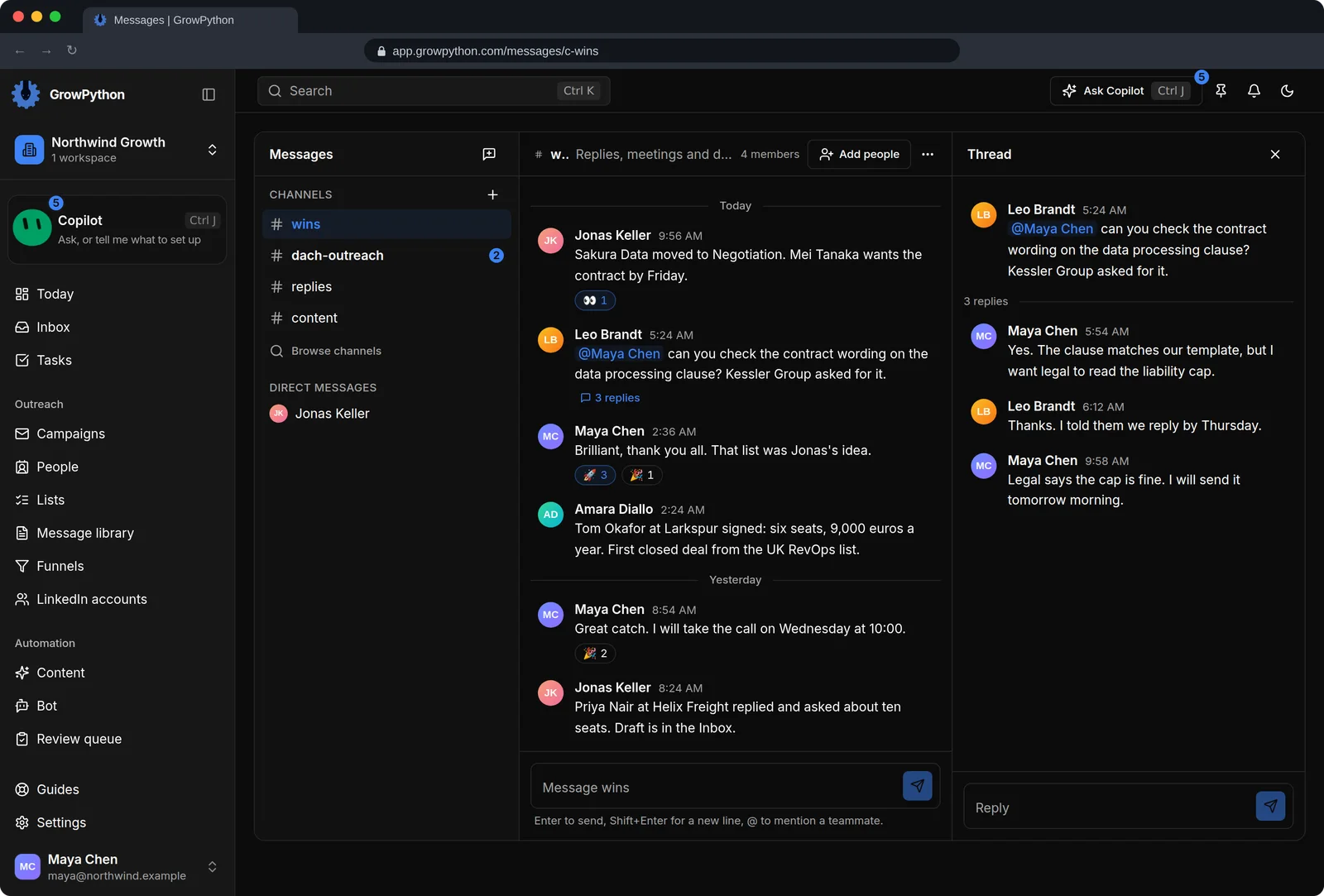
    Channels and direct messages for focused discussion, with threads.
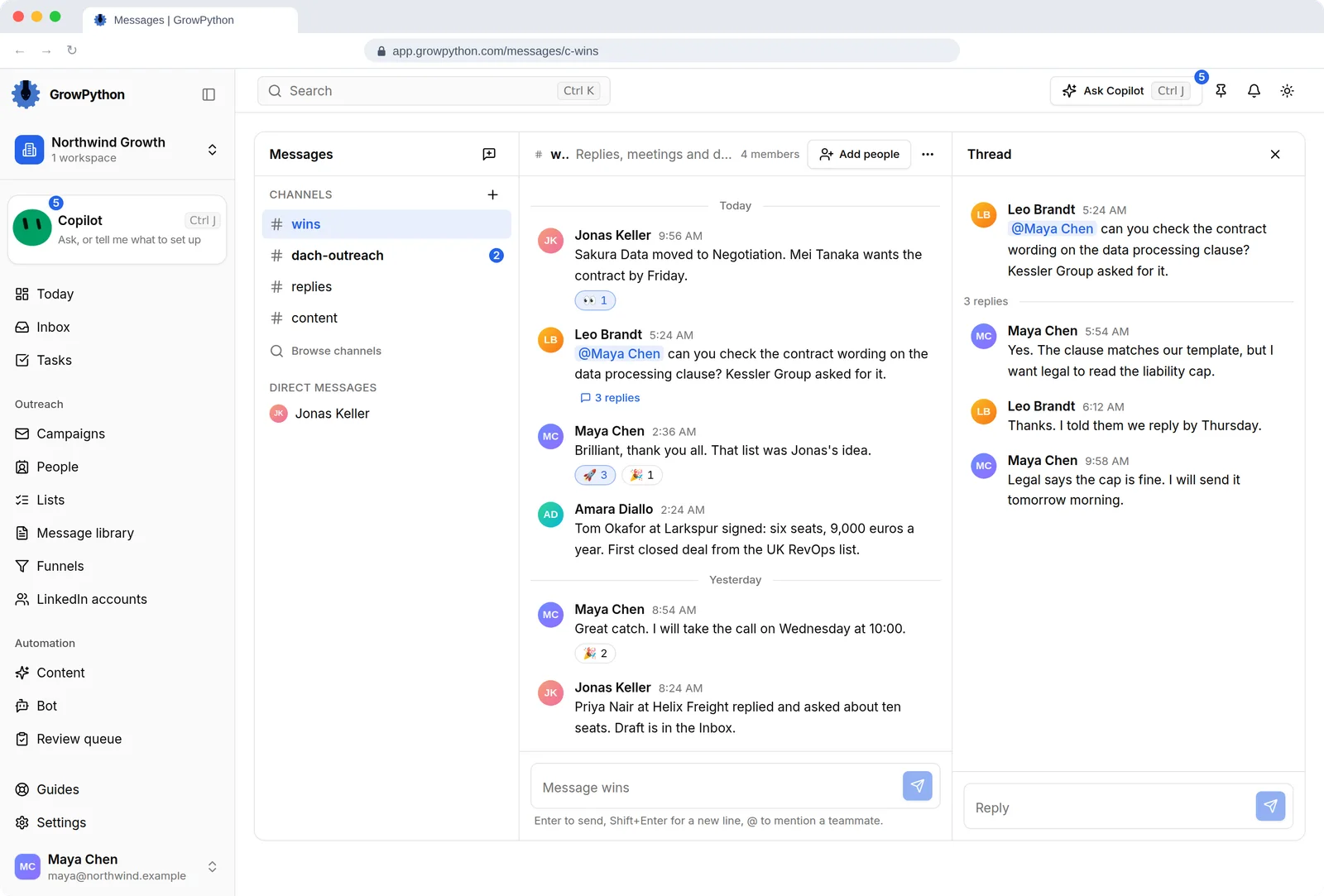
    Team Messages with channels wins, dach-outreach, replies and content and a direct message with Jonas Keller. The wins channel shows posts about deals moving forward, emoji reactions, an at-mention of Maya Chen, and a thread panel with three replies about a data processing clause.Team Messages with channels wins, dach-outreach, replies and content and a direct message with Jonas Keller. The wins channel shows posts about deals moving forward, emoji reactions, an at-mention of Maya Chen, and a thread panel with three replies about a data processing clause. Shown in the dark theme.
  5. Tasks

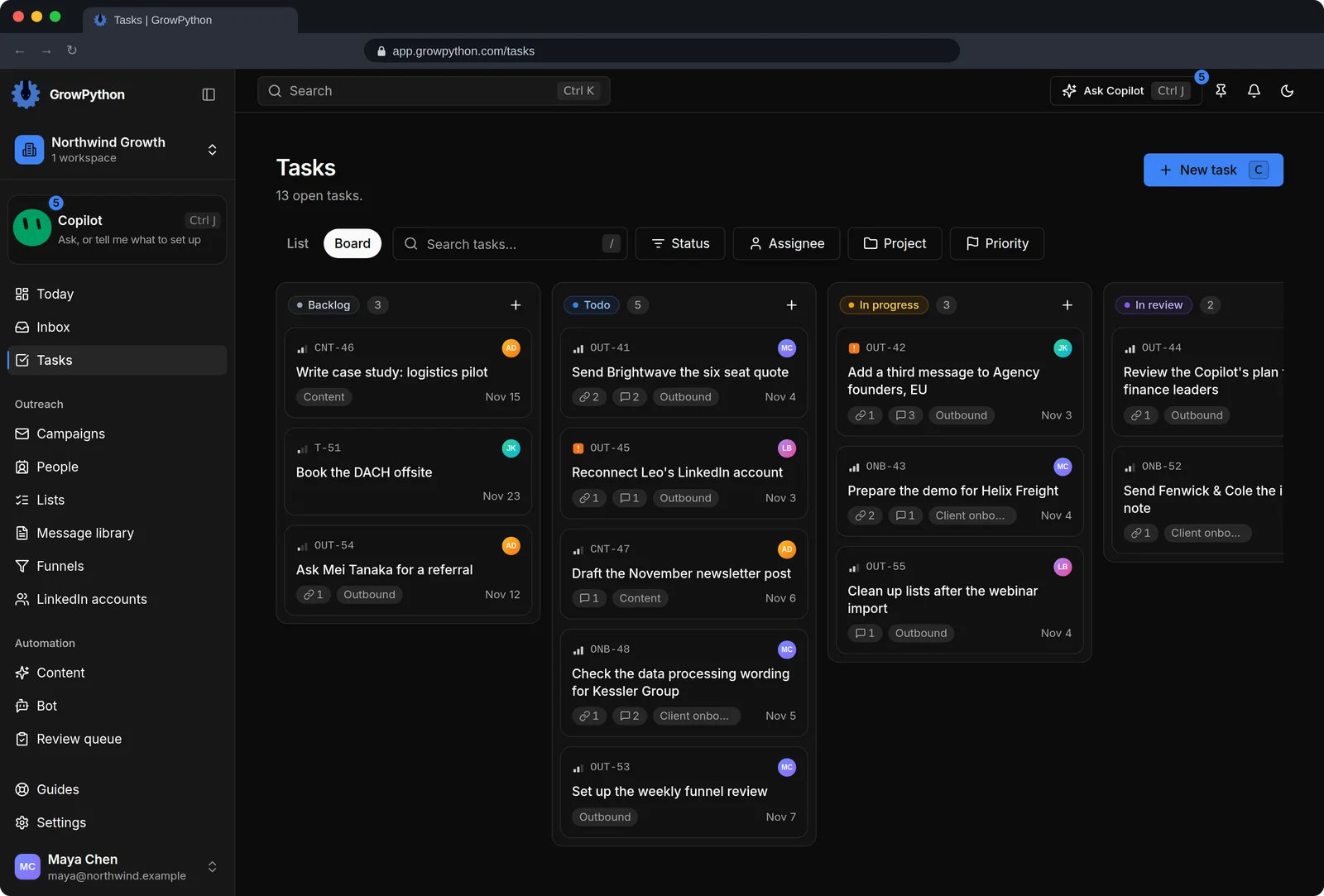
    A list and a board with status, priority and assignee, linked to the work they come from.
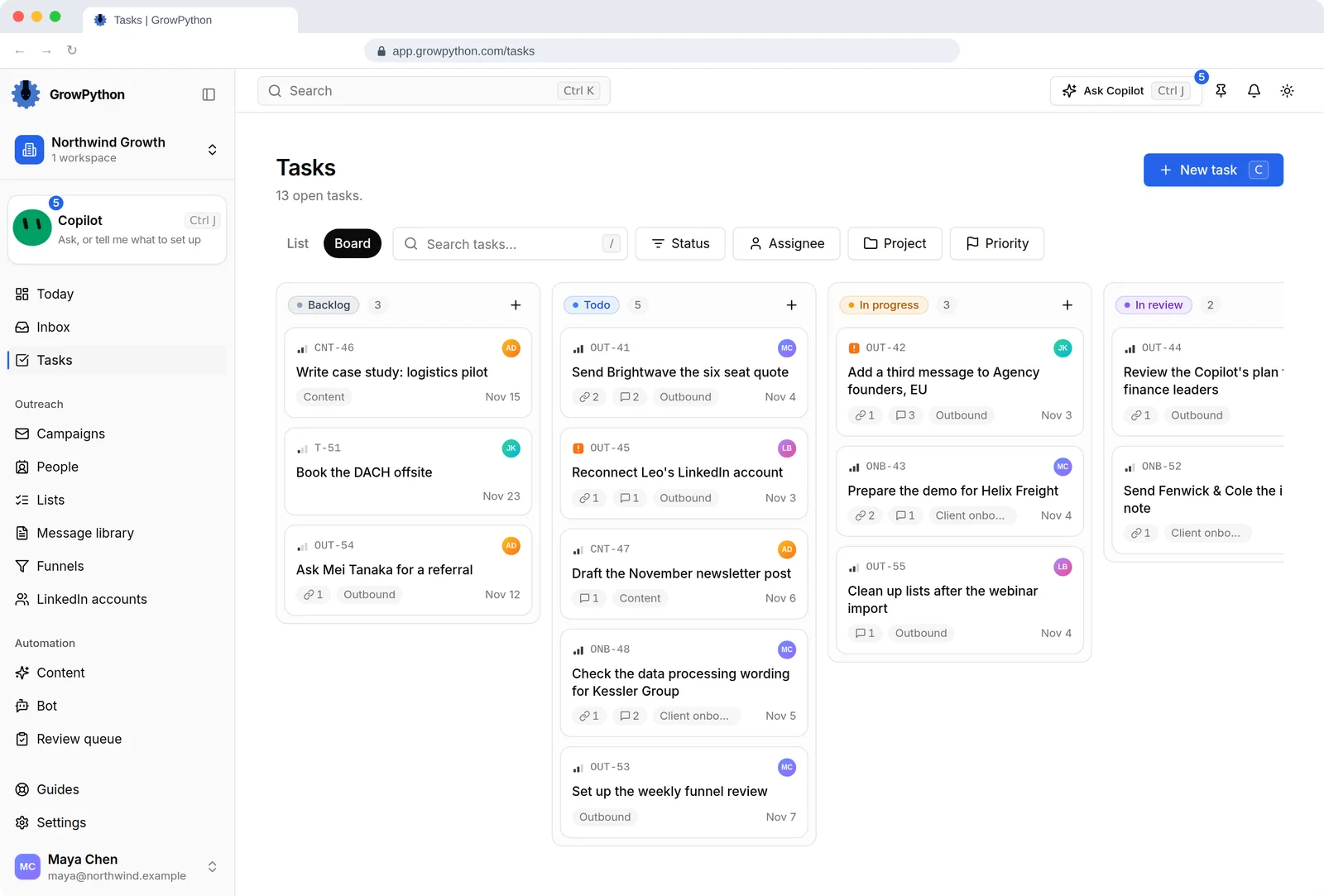
    The Tasks page in Board view with columns Backlog, Todo, In progress and In review. Cards such as Send Brightwave the six seat quote and Reconnect Leo's LinkedIn account show a task key, priority, linked records, comment count, project, due date and the assignee's initials.The Tasks page in Board view with columns Backlog, Todo, In progress and In review. Cards such as Send Brightwave the six seat quote and Reconnect Leo's LinkedIn account show a task key, priority, linked records, comment count, project, due date and the assignee's initials. Shown in the dark theme.
  6. Memory

    Short notes that the Copilot remembers for your team and for you. It says which one it used. Erasing a memory deletes it for good.

    The Docs editor open on a document called Outbound SOP: how we reach out and reply. A left tree lists folders Sales playbook, Clients and Meeting notes with documents tagged SOP and Pricing and showing how many AI jobs read them. The page shows headings such as Who we write to, How a first message sounds and When someone replies, with bullet and numbered lists, and AI use, Suggestions and History buttons at the top.The Docs editor open on a document called Outbound SOP: how we reach out and reply. A left tree lists folders Sales playbook, Clients and Meeting notes with documents tagged SOP and Pricing and showing how many AI jobs read them. The page shows headings such as Who we write to, How a first message sounds and When someone replies, with bullet and numbered lists, and AI use, Suggestions and History buttons at the top. Shown in the dark theme.
The Docs editor open on a document called Outbound SOP: how we reach out and reply. A left tree lists folders Sales playbook, Clients and Meeting notes with documents tagged SOP and Pricing and showing how many AI jobs read them. The page shows headings such as Who we write to, How a first message sounds and When someone replies, with bullet and numbered lists, and AI use, Suggestions and History buttons at the top.The Docs editor open on a document called Outbound SOP: how we reach out and reply. A left tree lists folders Sales playbook, Clients and Meeting notes with documents tagged SOP and Pricing and showing how many AI jobs read them. The page shows headings such as Who we write to, How a first message sounds and When someone replies, with bullet and numbered lists, and AI use, Suggestions and History buttons at the top. Shown in the dark theme.

How it works

Workspace

  1. Step 1 of 4

    Open Workspace in the sidebar

    Calendar, Messages, Meeting notes, Docs, Memory, Files and Canvas sit in one folded group.

  2. Step 2 of 4

    Write down how you sell

    Start a doc, or import your SOPs, so the team and the Copilot work from the same words.

  3. Step 3 of 4

    Turn follow-ups into tasks

    Assign a task, set a due date and keep it next to the person or campaign it is about.

  4. Step 4 of 4

    Talk where the work is

    Use channels and direct messages for the team, and assign Inbox conversations to a teammate.

Limits and guardrails

What it will not do, and what you should know before you rely on it.

  • This is a sales and agency workspace, not a general office suite. It is shaped around leads, campaigns and replies.
  • A doc is internal by default. It guides the AI helpers but is never quoted to a lead until an admin or owner marks it shareable.
  • A doc with no AI job is read by no AI helper. New imports start with the Copilot only.
  • Do not put passwords, keys or private customer data into Docs or Memory. They are meant to be read by AI helpers.
  • Viewers in a workspace can read pages but not change them.

Workspace

More screens

  • A whiteboard whose cards are live people, companies and deals.

  • Files with the text inside searchable, and a preview beside them.

  • Team chat next to the work, with threads and mentions.

  • Tasks tied to the people, deals and docs they are about.

FAQ

Questions

Can I edit a doc with a teammate at the same time?

Yes. Docs support live co-editing, and show who else is in the doc.

Does the AI read all my documents?

Only the ones you give an AI job. A doc with no AI job is read by no AI, and the AI use panel on each doc shows which AI reads it.

Is there a team chat?

Yes. Messages has channels and direct messages, and Inbox conversations can be assigned to a teammate.

Can I search inside uploaded files?

Yes. The search box in Files matches the text inside PDFs, documents and spreadsheets.

Ready to run client acquisition from one place?

Start your free trial, connect an account and build a small list first.

5-day free trial for new customers