Skip to content

LinkedIn outreach

A LinkedIn outreach platform with limits you set

Connect your LinkedIn accounts, build a sequence of connection requests and follow-ups, set weekly limits and working hours, then press Start. Replies land in one Inbox next to your email.

Does the job ofa standalone LinkedIn outreach tool

What it does

Sequences, limits and replies, with you pressing Start.

  1. Limits per account

    Connection requests, messages and InMails each have a weekly limit from 10 to 200, with 100 as the default. Pick Gentle (50), Balanced (100) or Faster (150), or set your own.
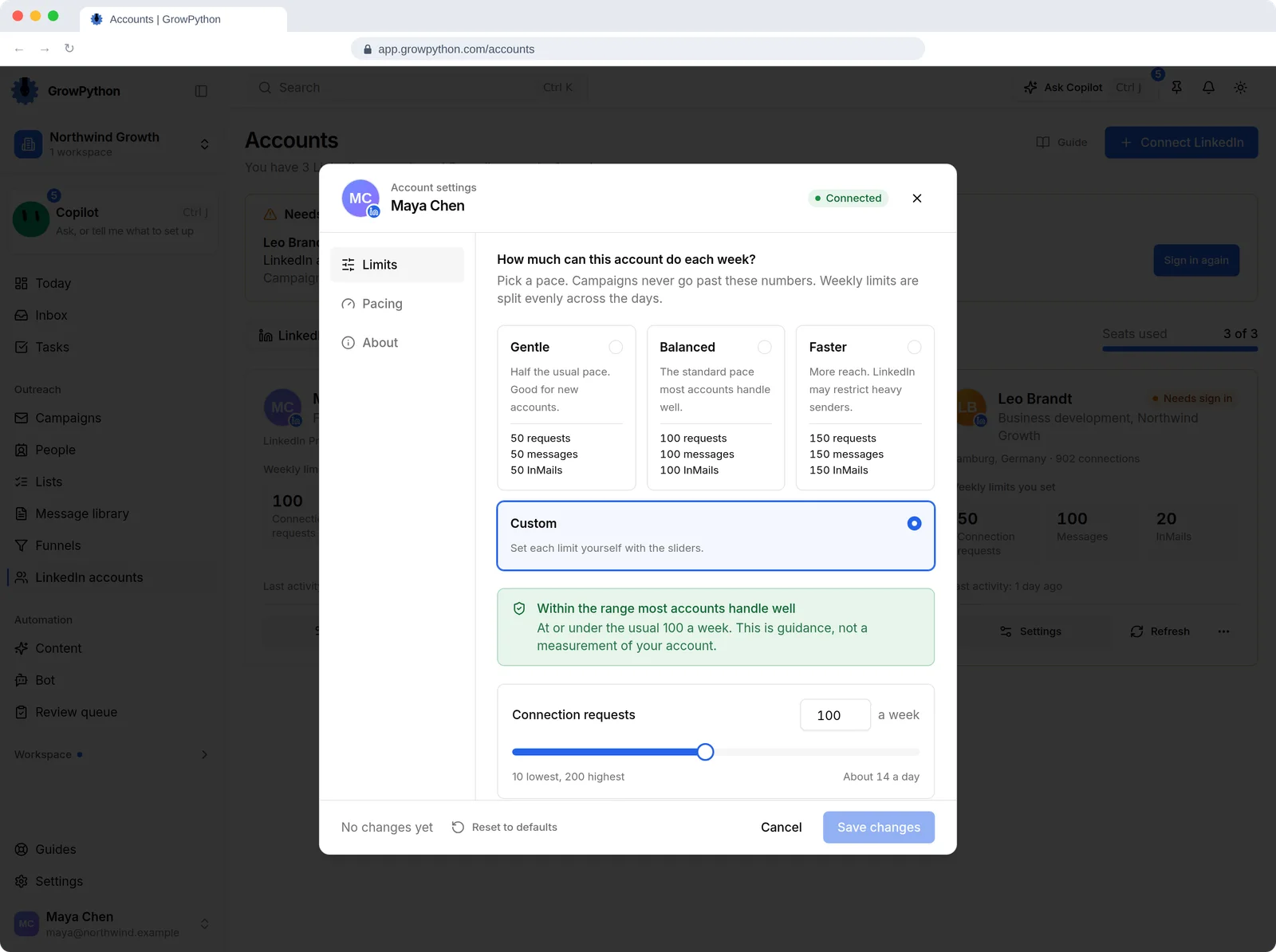
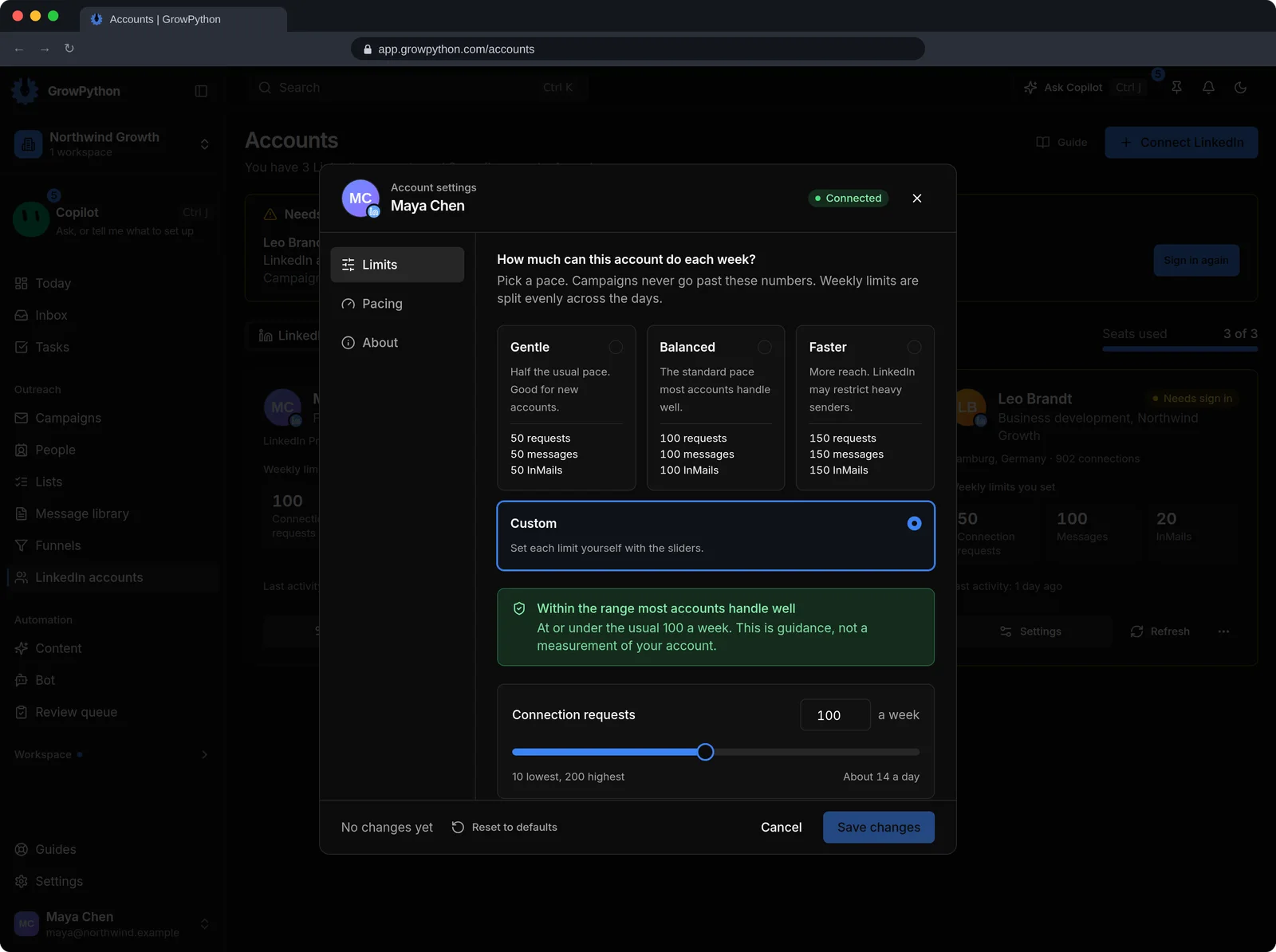
    The account settings dialog for the LinkedIn account of Maya Chen on its Limits tab. Pace choices Gentle, Balanced, Faster and Custom are shown, with Custom selected and a Connection requests slider at 100 a week, a note that this is within the range most accounts handle well, and Cancel and Save changes buttons.The account settings dialog for the LinkedIn account of Maya Chen on its Limits tab. Pace choices Gentle, Balanced, Faster and Custom are shown, with Custom selected and a Connection requests slider at 100 a week, a note that this is within the range most accounts handle well, and Cancel and Save changes buttons. Shown in the dark theme.
  2. A sequence you can read

    A connection request with an optional note, follow-ups with delays in days and hours, and optional steps: react to a post, endorse a skill, send an InMail, accept incoming requests, withdraw old ones.
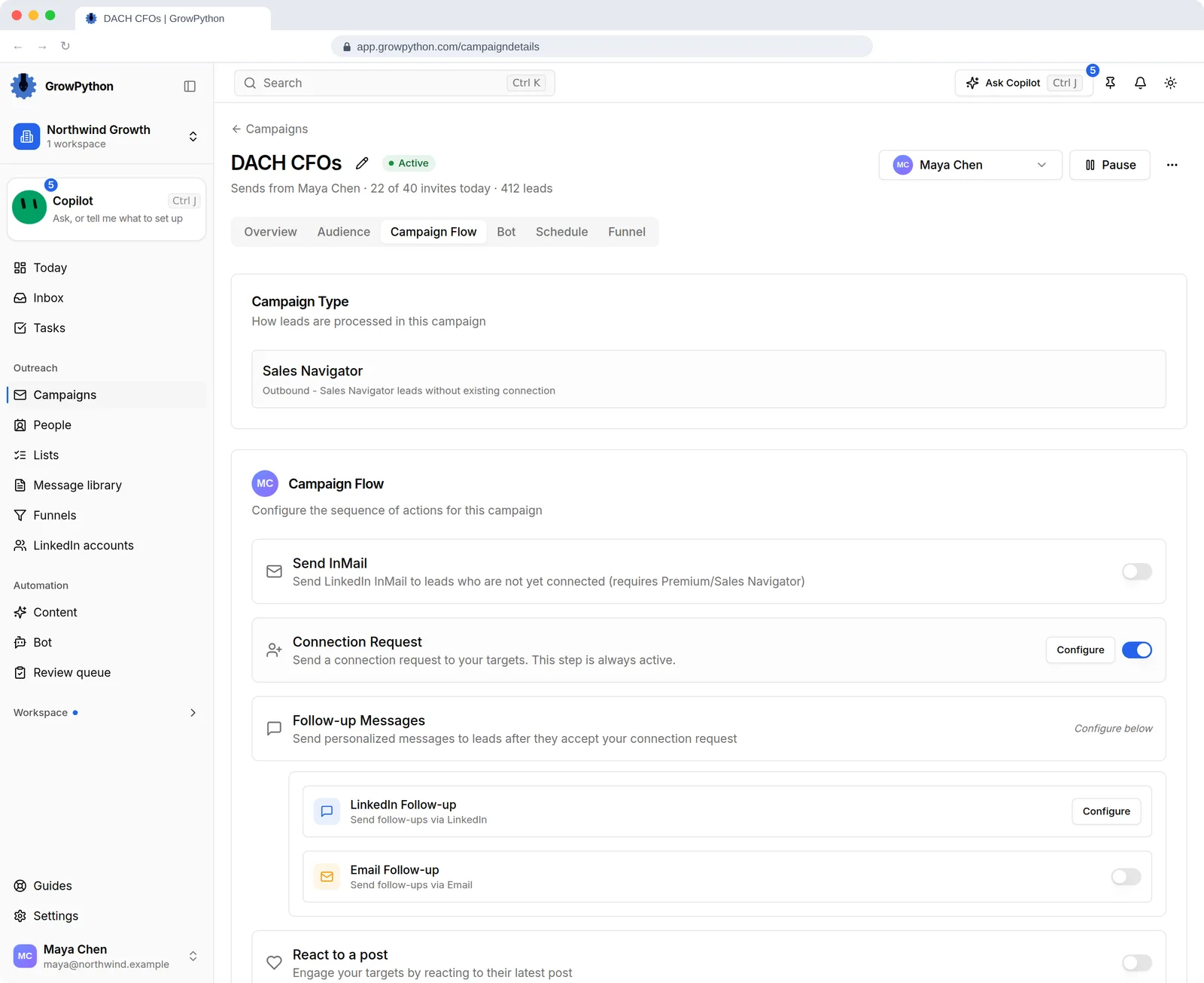
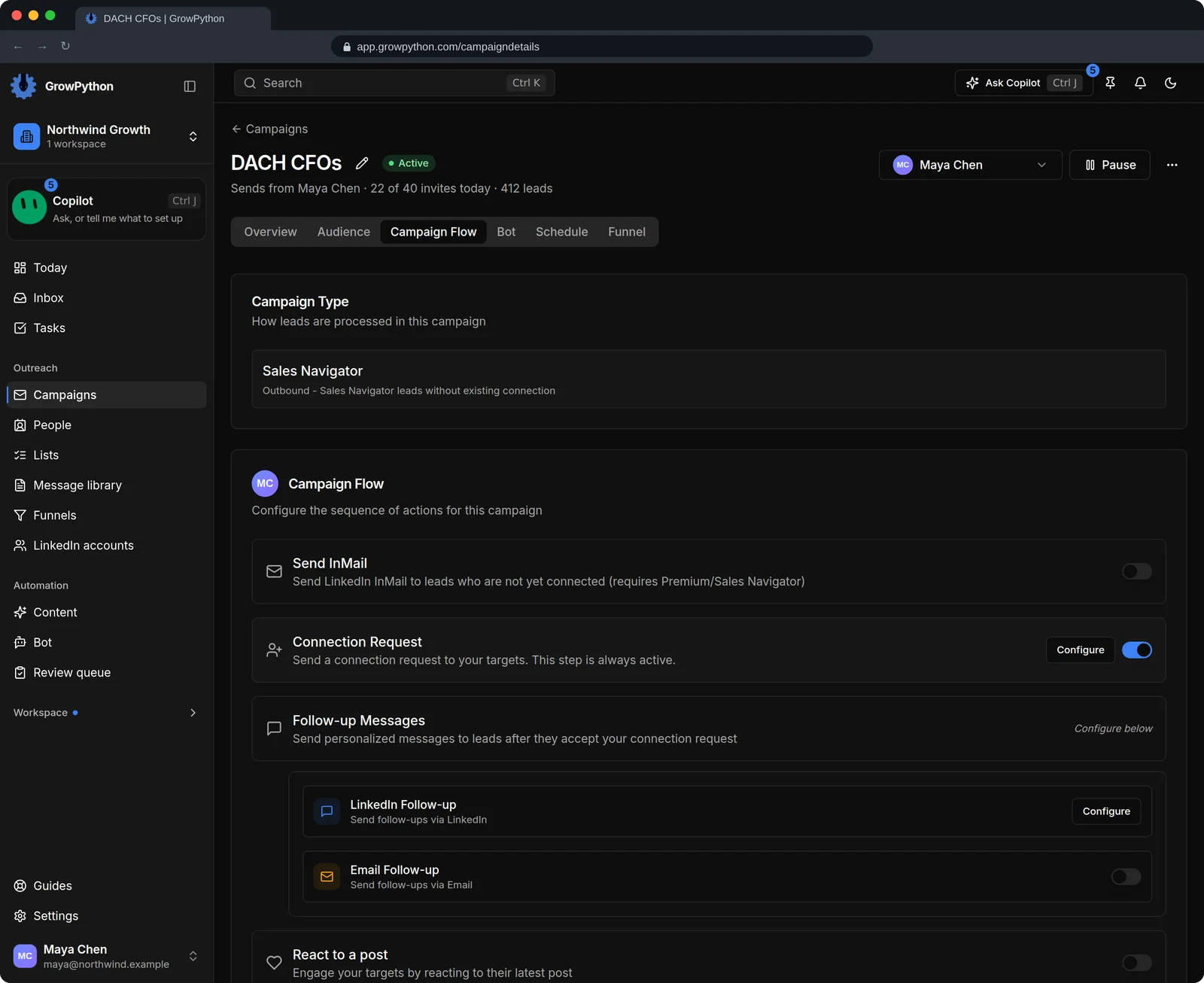
    The Campaign Flow tab of the DACH CFOs campaign. It lists the steps: a connection request that is always on, follow-up messages sent after the request is accepted by LinkedIn or by email, and optional steps such as reacting to a post, each with a switch and a Configure button.The Campaign Flow tab of the DACH CFOs campaign. It lists the steps: a connection request that is always on, follow-up messages sent after the request is accepted by LinkedIn or by email, and optional steps such as reacting to a post, each with a switch and a Configure button. Shown in the dark theme.
  3. Working days and hours

    A campaign acts only inside the days and hours you set, in one timezone or in each person's. Work runs in small steps through the day, not in bursts.
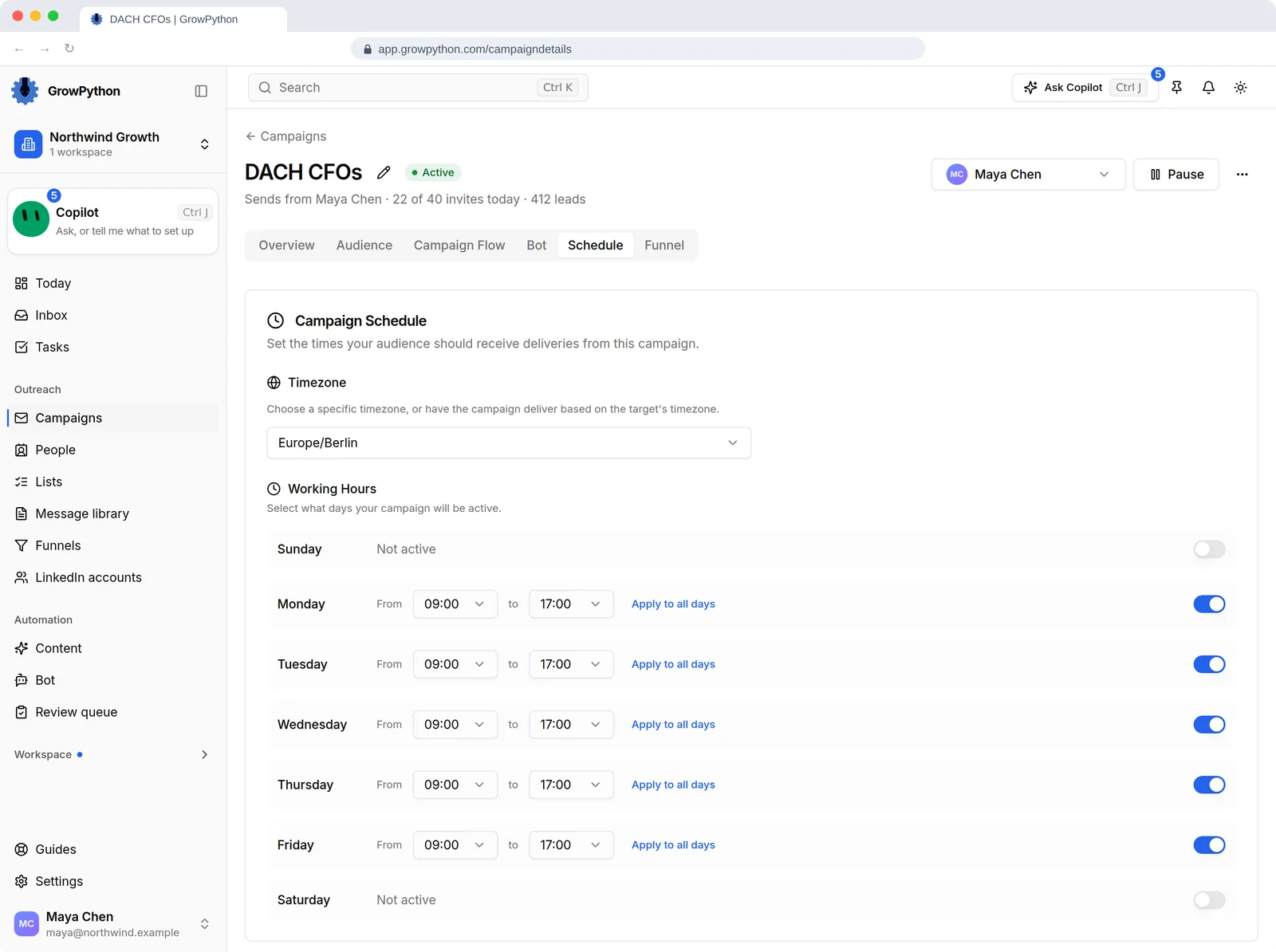
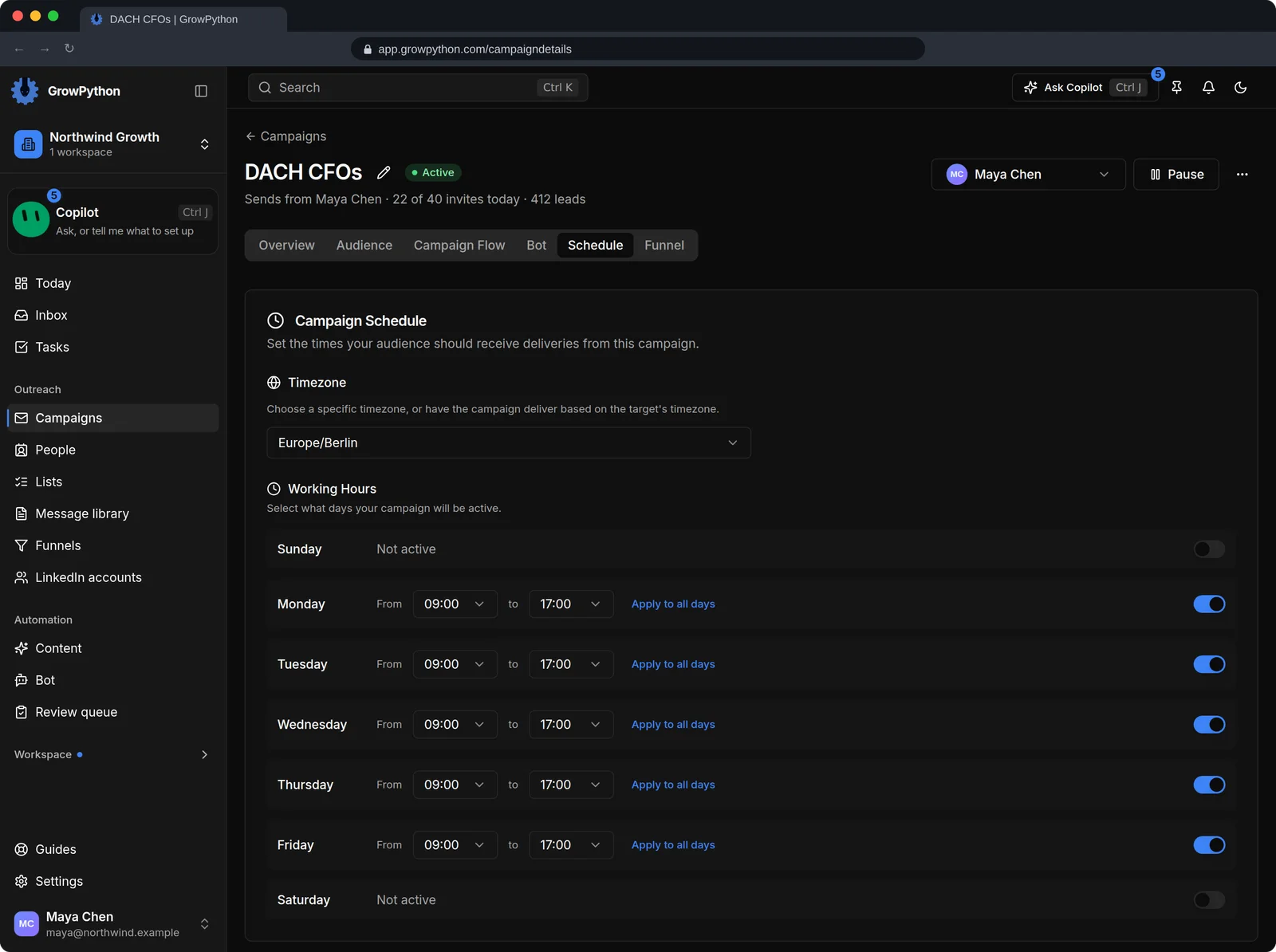
    The Schedule tab of the DACH CFOs campaign with a time zone of Europe/Berlin and working hours from 09:00 to 17:00 switched on for Monday to Friday, Saturday and Sunday not active, and an Apply to all days link on each row.The Schedule tab of the DACH CFOs campaign with a time zone of Europe/Berlin and working hours from 09:00 to 17:00 switched on for Monday to Friday, Saturday and Sunday not active, and an Apply to all days link on each row. Shown in the dark theme.
  4. More than one account

    Each connected LinkedIn account uses one seat. A campaign can send from several accounts for most list types.
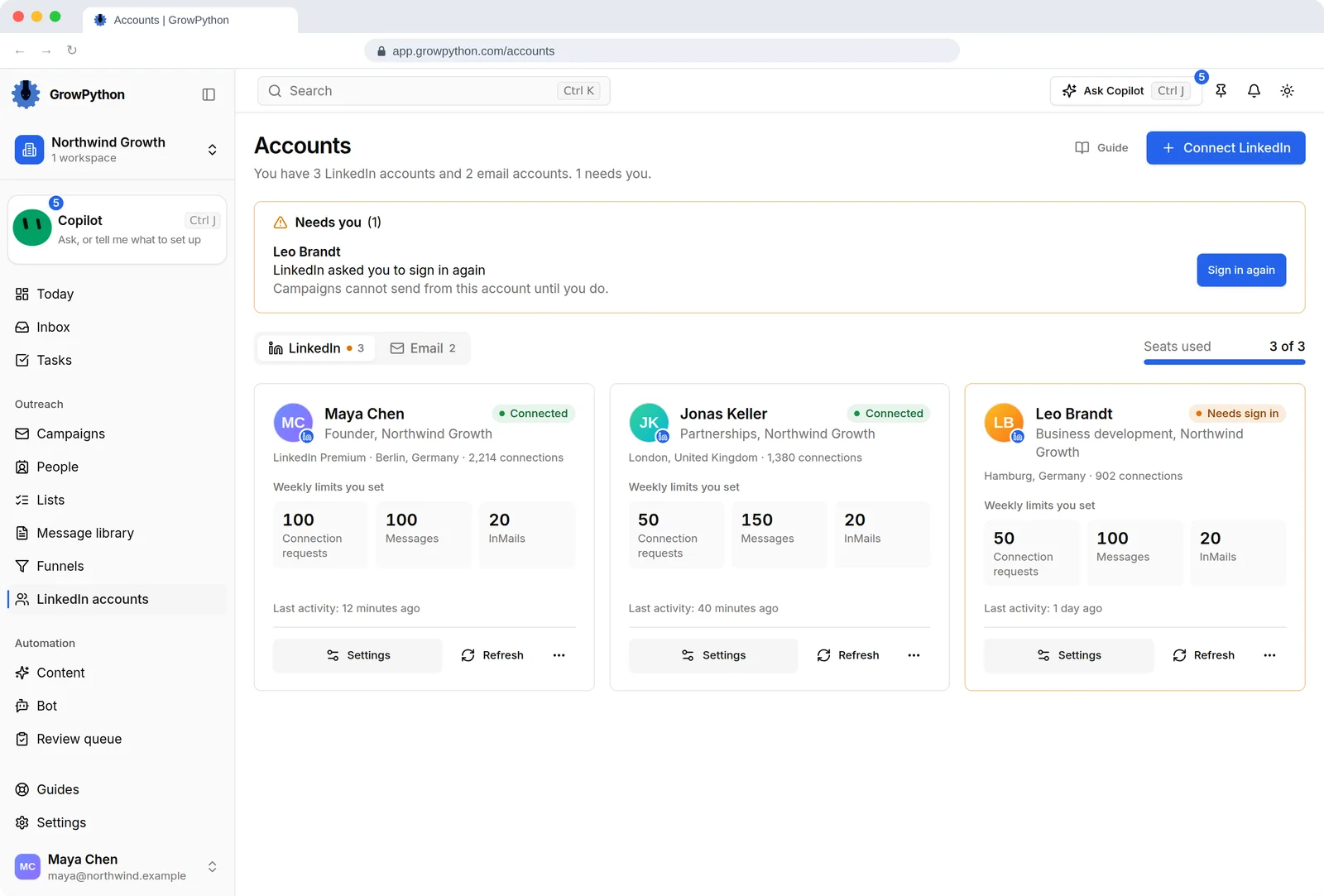
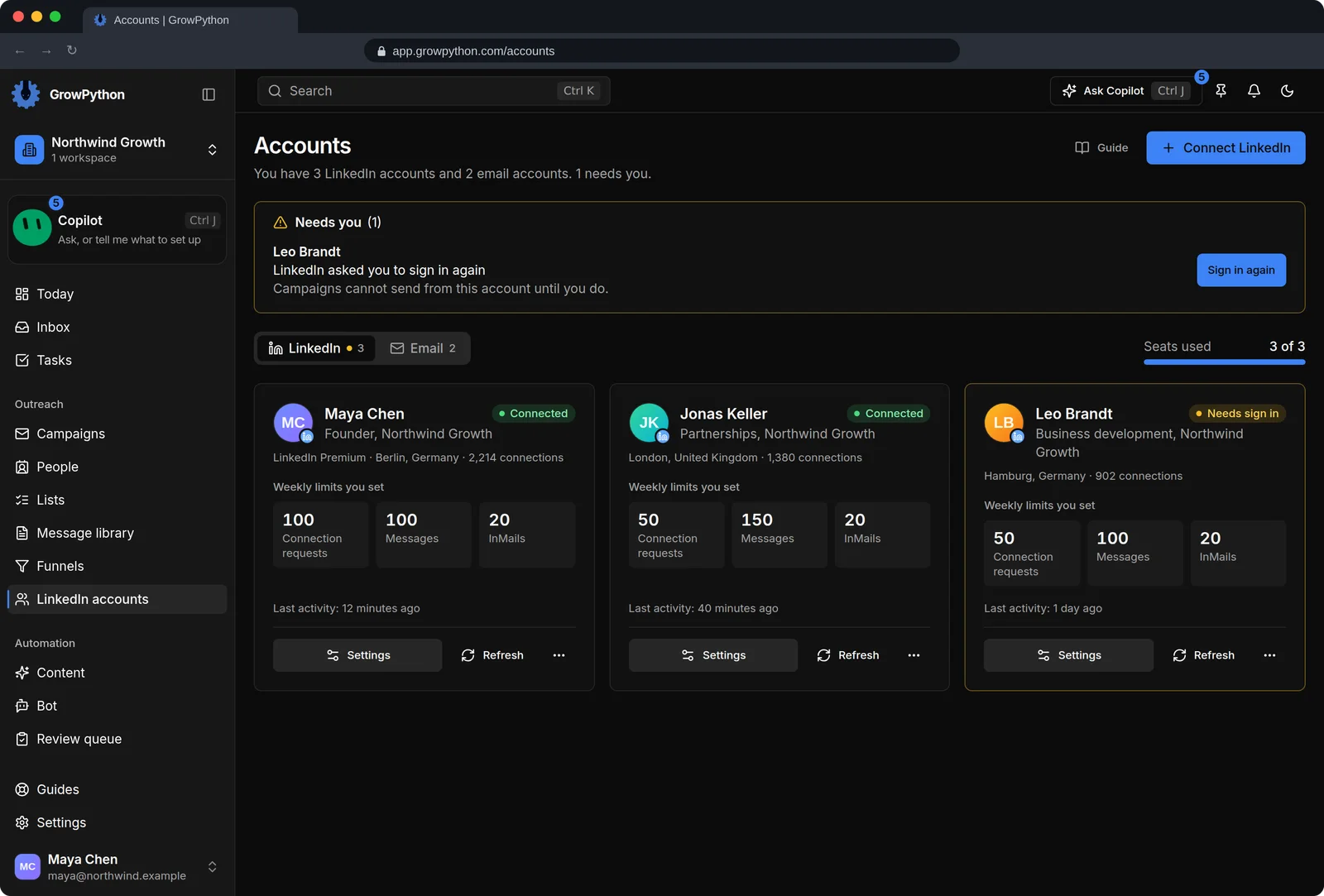
    The Accounts page with three LinkedIn account cards for Maya Chen, Jonas Keller and Leo Brandt. Each card shows its weekly limits for connection requests, messages and InMails and when it was last active. One account shows a Needs sign in warning with a Sign in again button, and a seat counter reads 3 of 3.The Accounts page with three LinkedIn account cards for Maya Chen, Jonas Keller and Leo Brandt. Each card shows its weekly limits for connection requests, messages and InMails and when it was last active. One account shows a Needs sign in warning with a Sign in again button, and a seat counter reads 3 of 3. Shown in the dark theme.
  5. See where everyone is

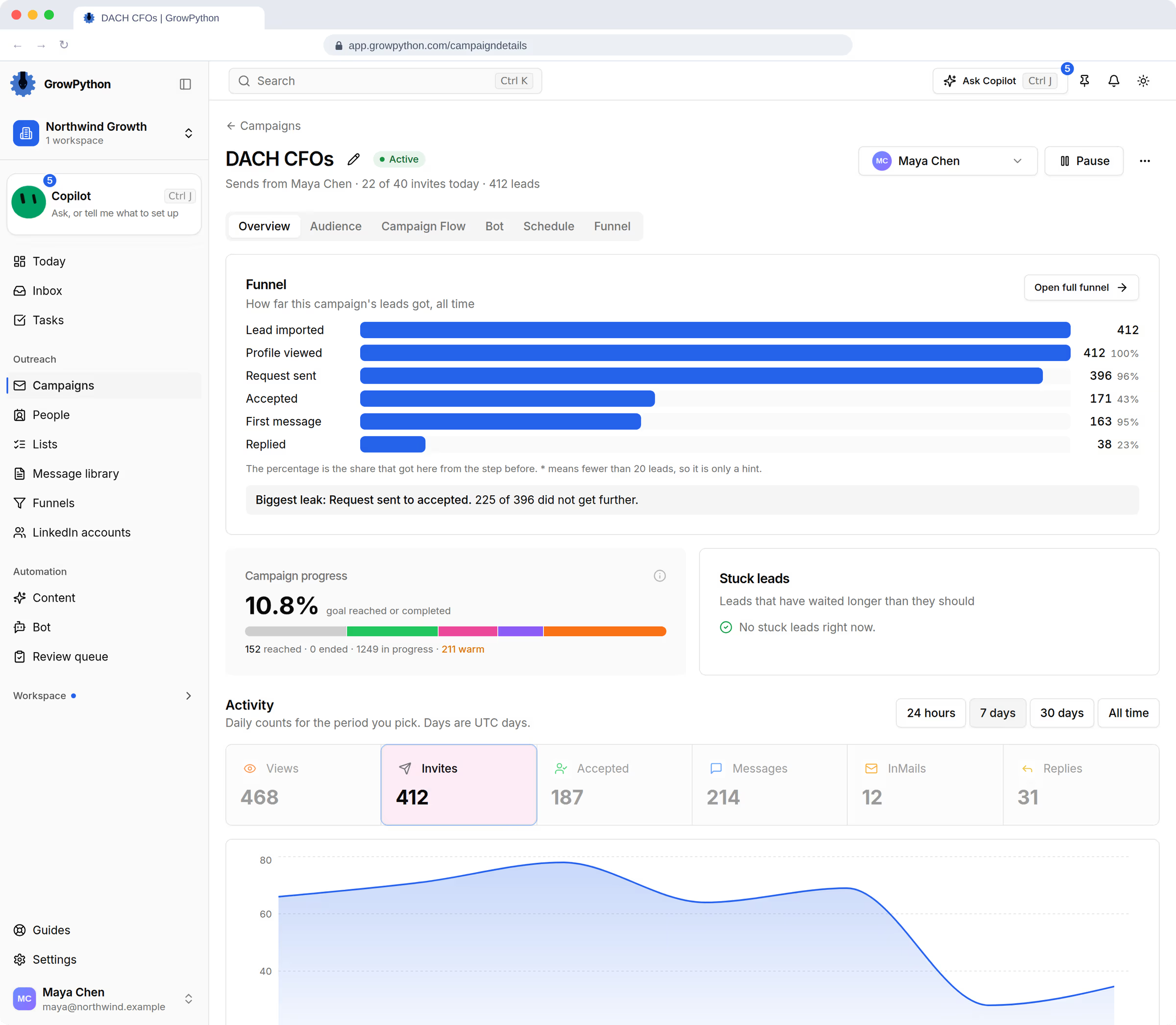
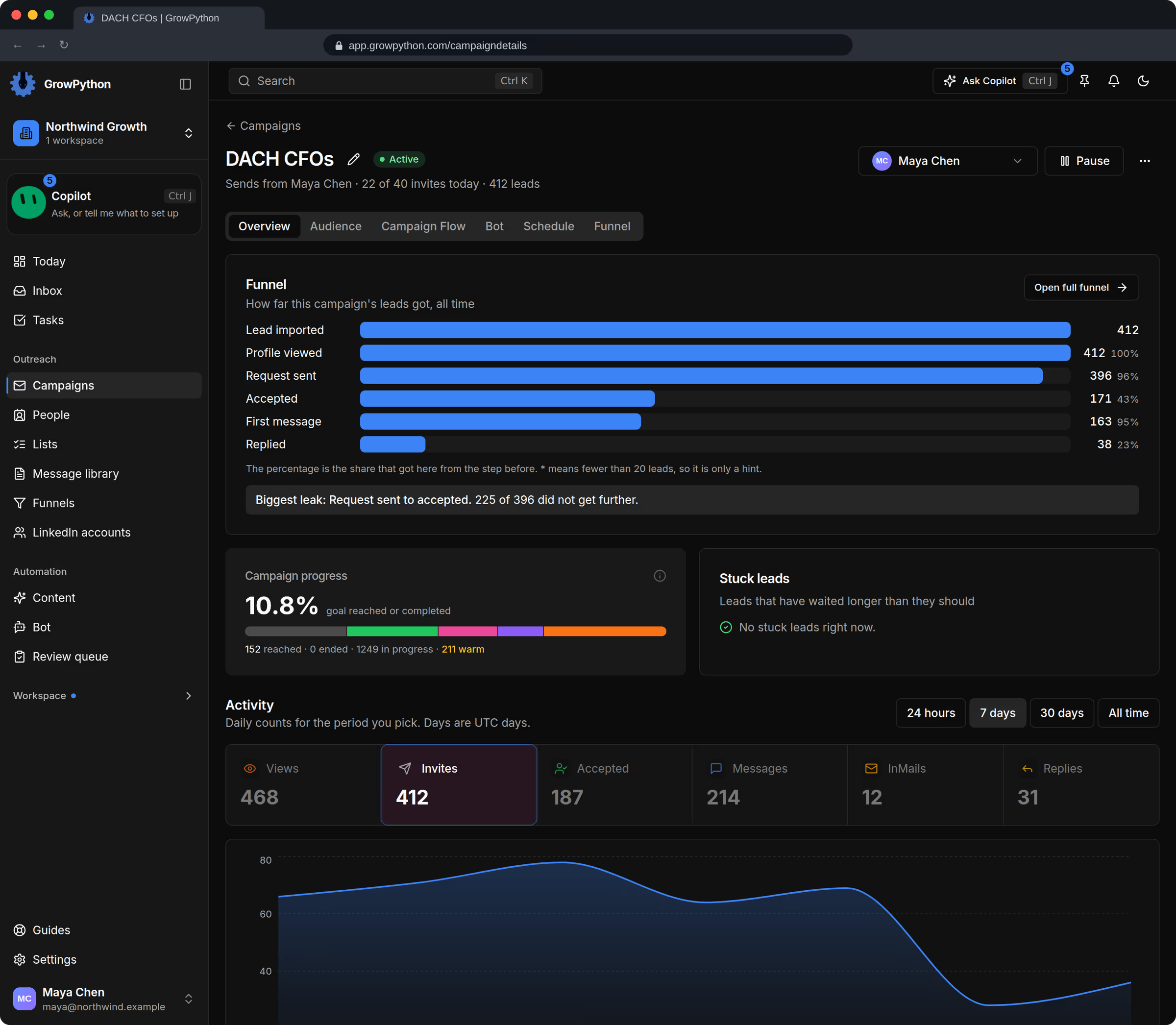
    The campaign overview shows how many people are not started, invited, accepted, messaged or replied.
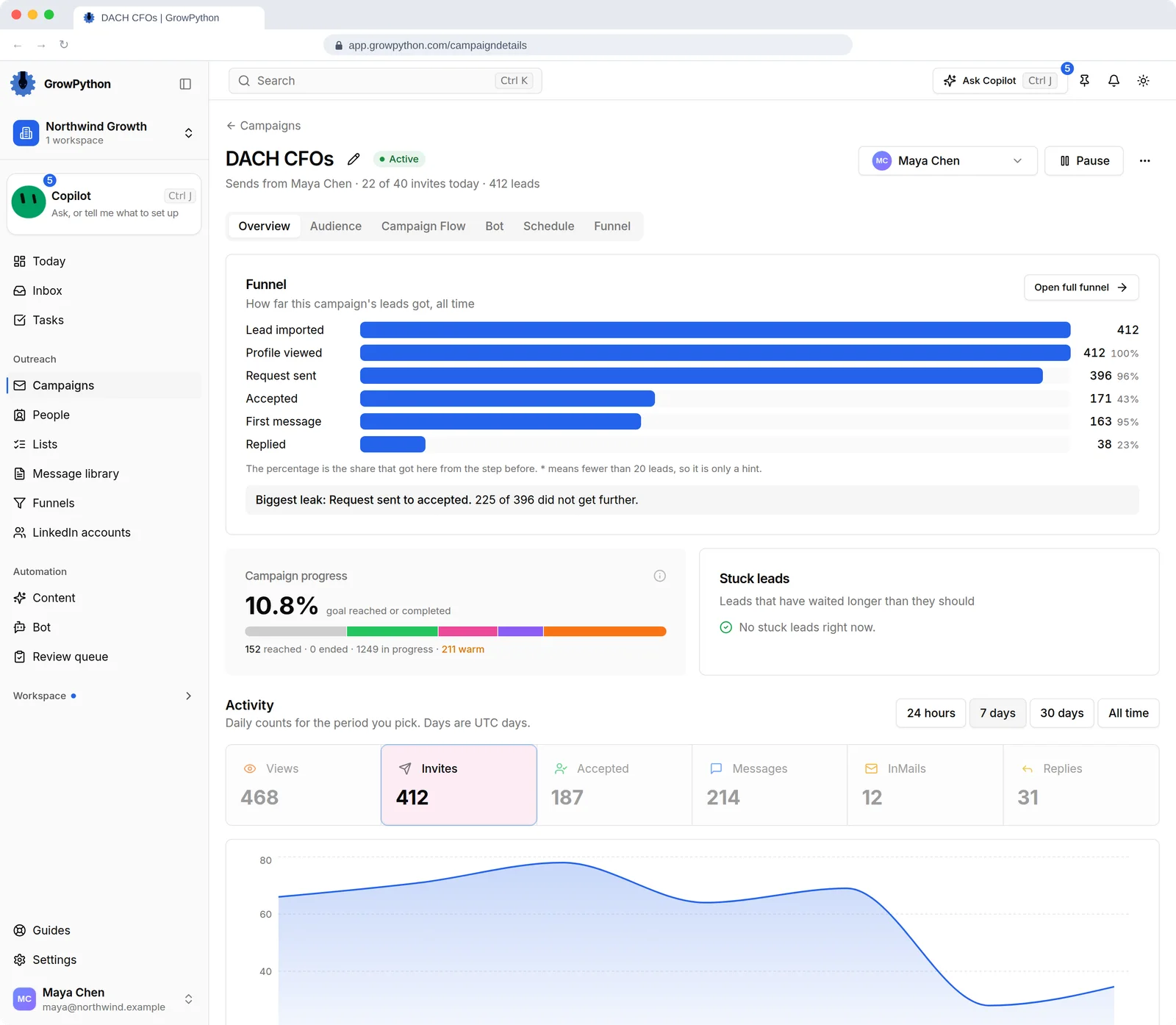
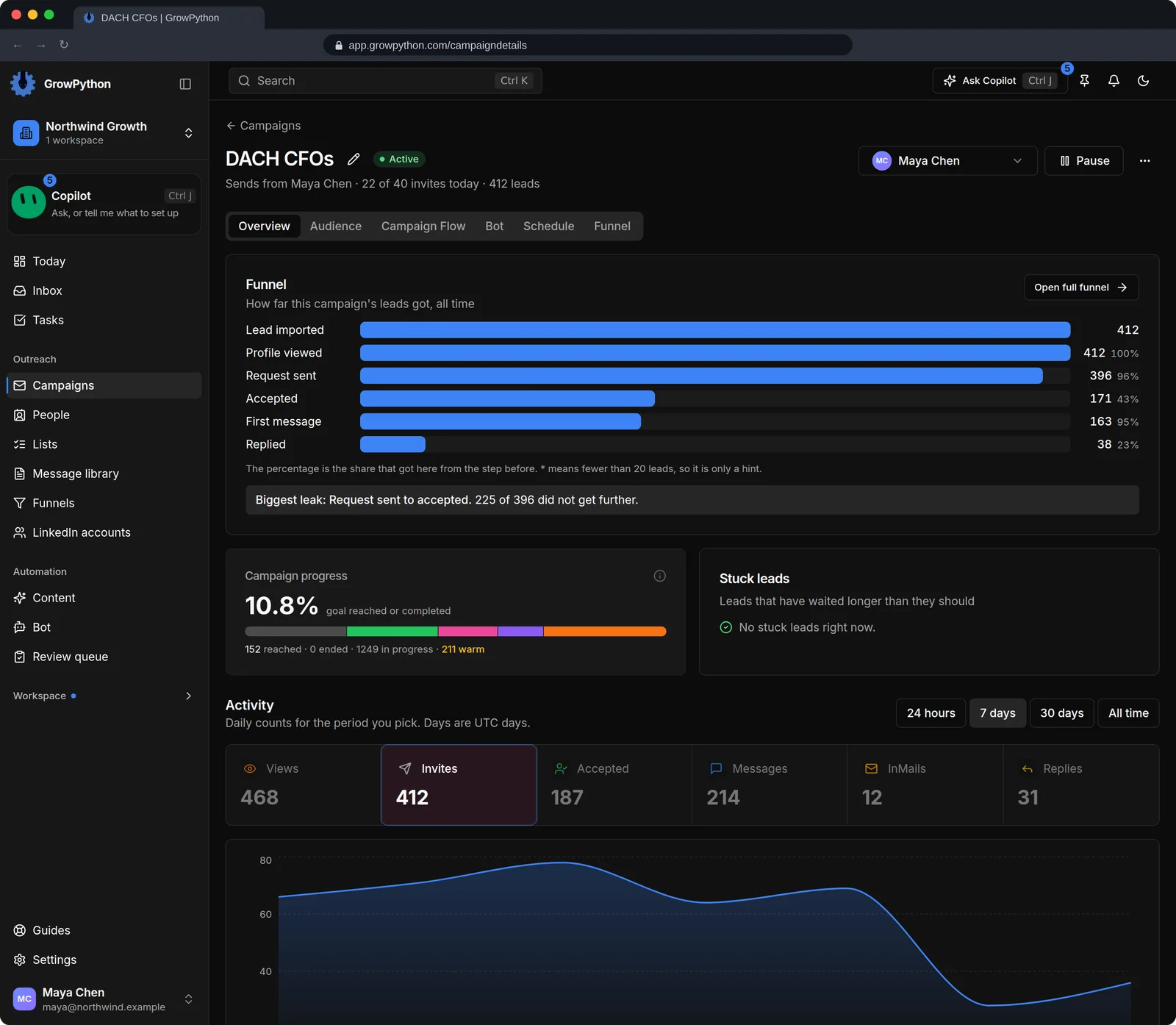
    The Overview tab of the DACH CFOs campaign. It shows a funnel from 412 leads imported to 38 replies with the share at each step, a Pause button, a campaign progress bar, a Stuck leads panel with nothing stuck, and the invites, accepted, messages and replies counts for the last seven days with a chart.The Overview tab of the DACH CFOs campaign. It shows a funnel from 412 leads imported to 38 replies with the share at each step, a Pause button, a campaign progress bar, a Stuck leads panel with nothing stuck, and the invites, accepted, messages and replies counts for the last seven days with a chart. Shown in the dark theme.
  6. Start is your click

    A campaign stays a draft until you press Start. A checklist blocks Start until a sender, a follow-up message (when that step is on) and working hours are set.
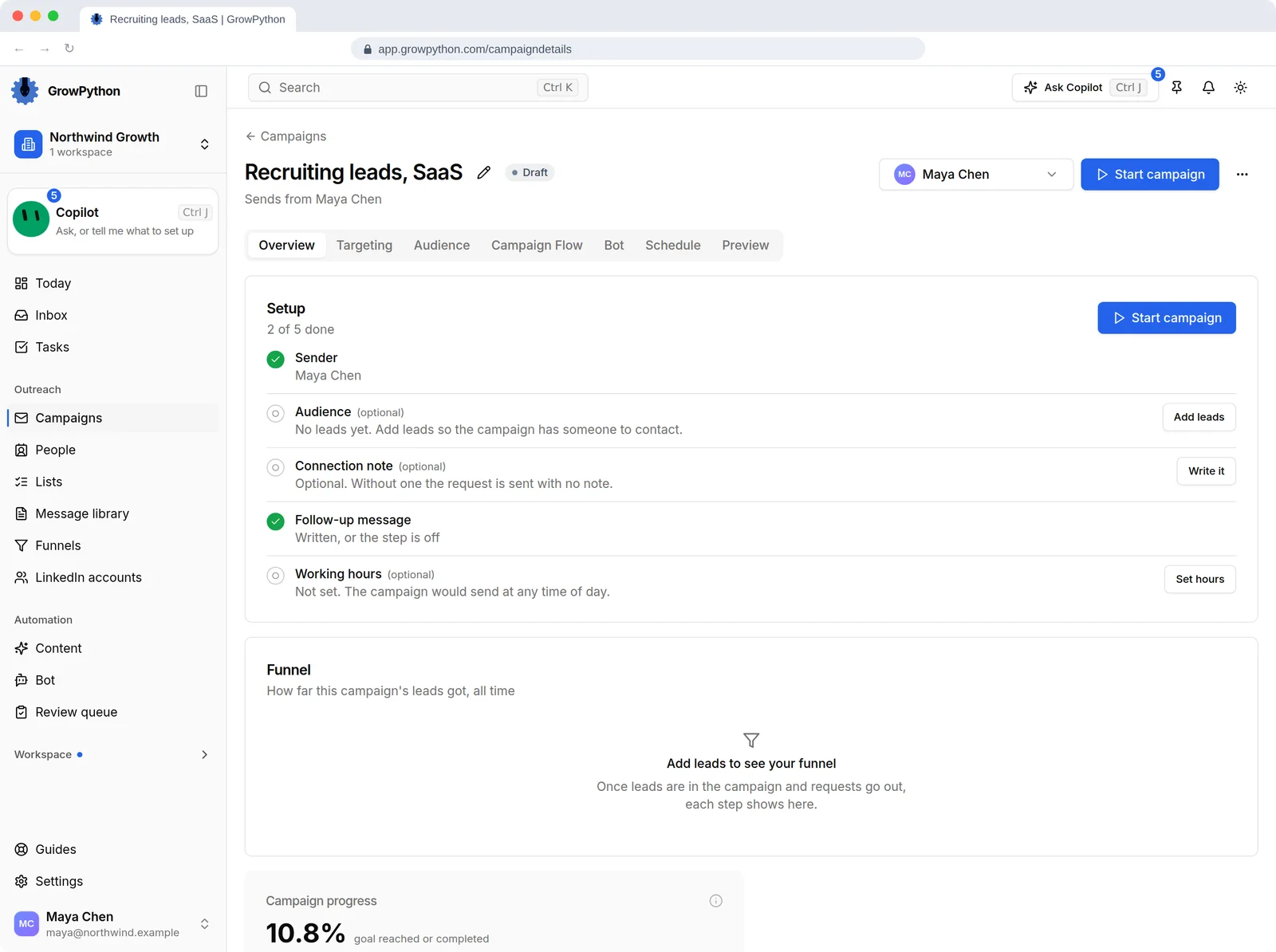
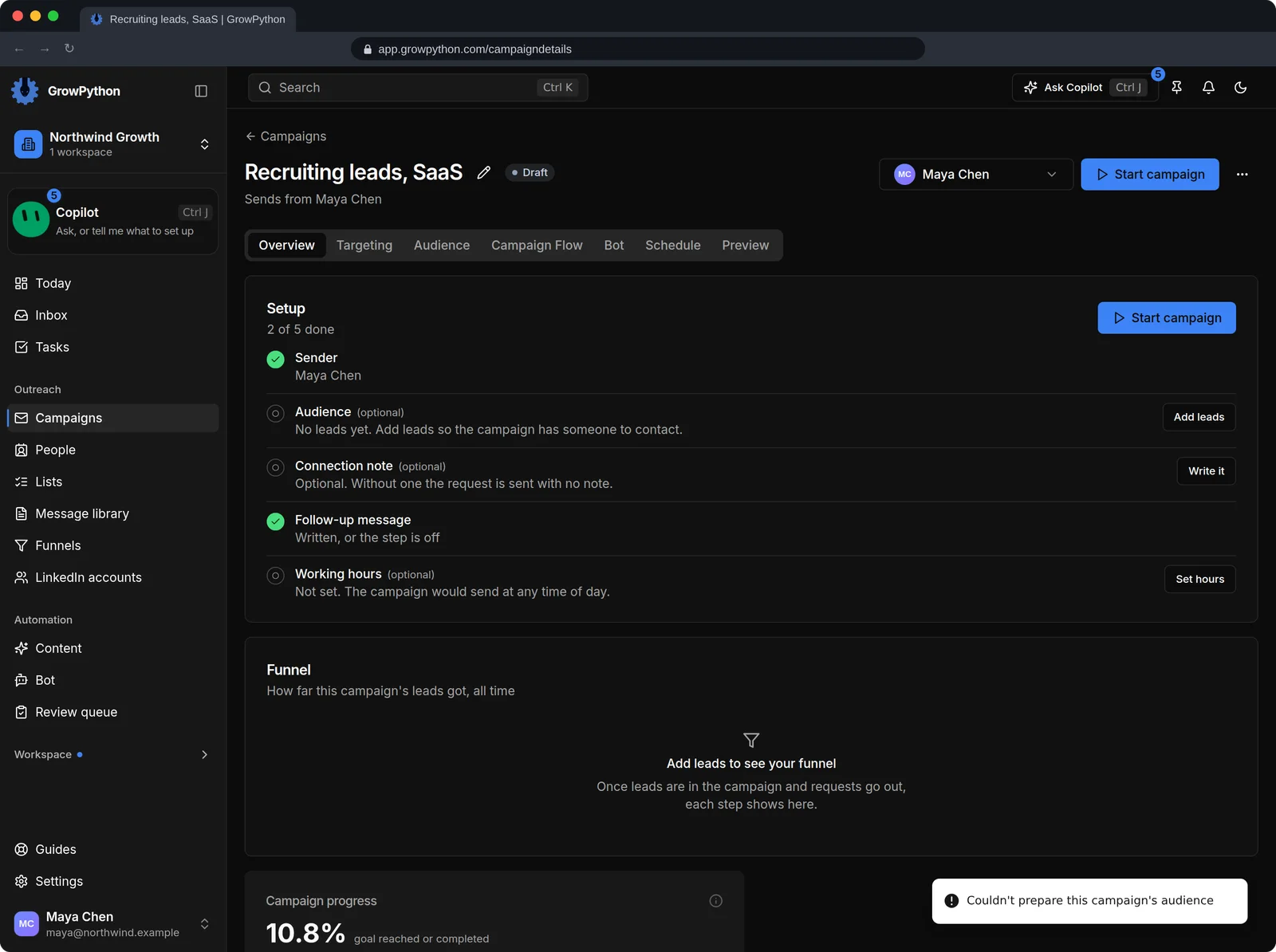
    A draft campaign, Recruiting leads SaaS, with a Start campaign button in the header. Nothing starts until a person presses it.A draft campaign, Recruiting leads SaaS, with a Start campaign button in the header. Nothing starts until a person presses it. Shown in the dark theme.
  7. A message library

    Keep connection notes, follow-ups and InMails in one place with variables such as {{first_name}}, a preview filled in with a real person and version history.
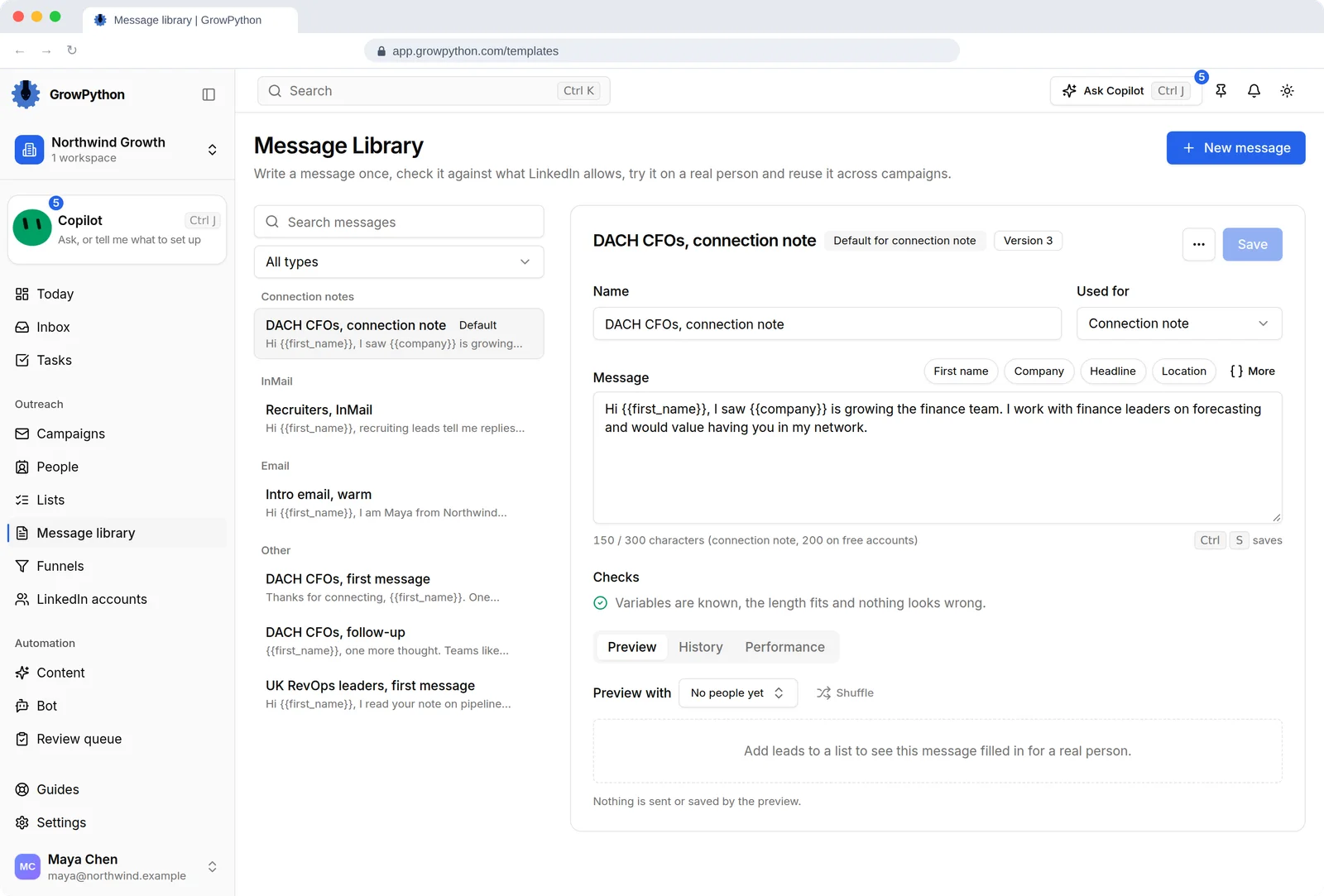
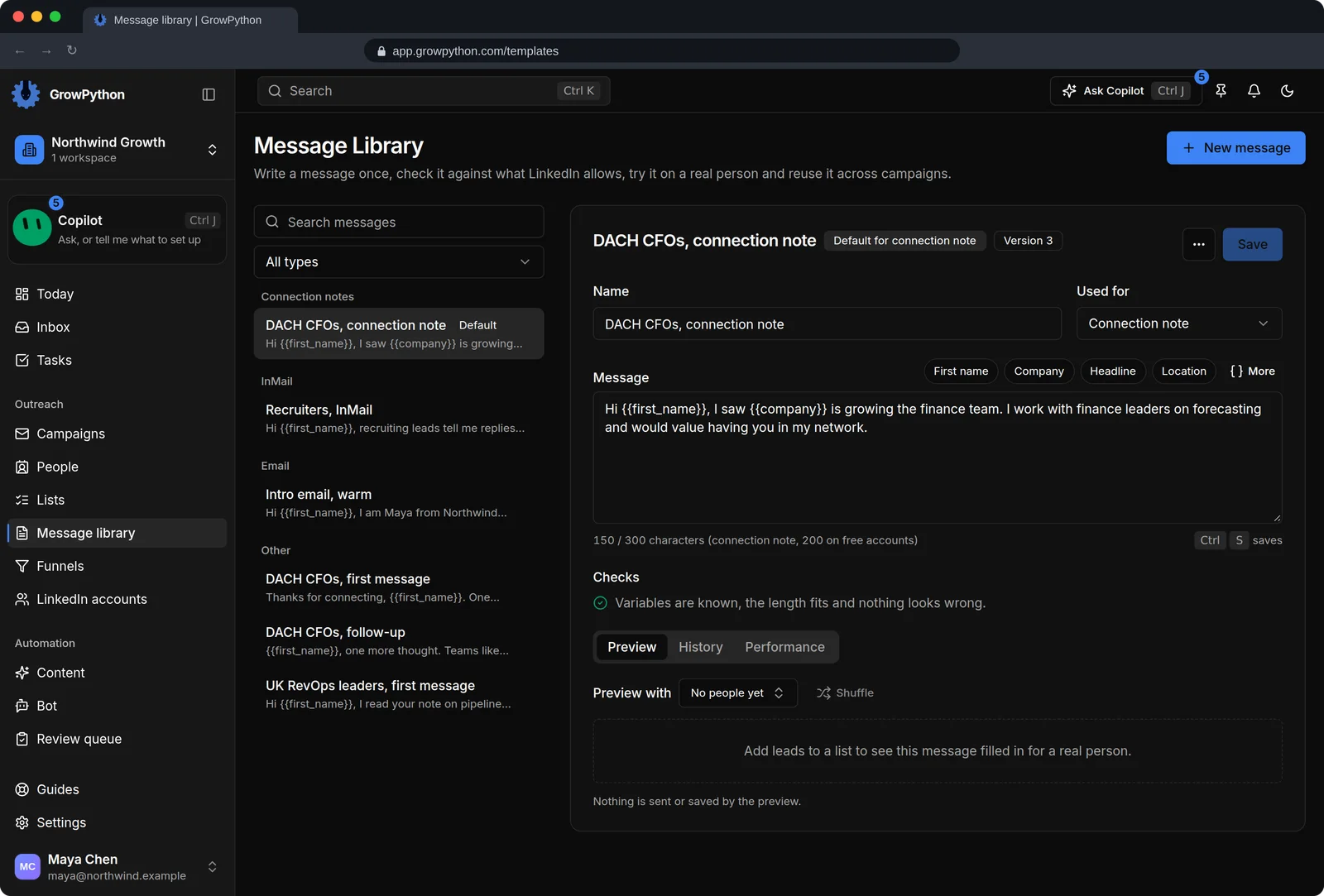
    The Message library with a list of saved messages grouped by type: connection notes, InMail, email and other messages. The editor shows DACH CFOs, connection note with its text, variables such as first name and company, a character count against the 300 limit, and a check that confirms the variables are known and the length fits.The Message library with a list of saved messages grouped by type: connection notes, InMail, email and other messages. The editor shows DACH CFOs, connection note with its text, variables such as first name and company, a character count against the 300 limit, and a check that confirms the variables are known and the length fits. Shown in the dark theme.
The account settings dialog for the LinkedIn account of Maya Chen on its Limits tab. Pace choices Gentle, Balanced, Faster and Custom are shown, with Custom selected and a Connection requests slider at 100 a week, a note that this is within the range most accounts handle well, and Cancel and Save changes buttons.The account settings dialog for the LinkedIn account of Maya Chen on its Limits tab. Pace choices Gentle, Balanced, Faster and Custom are shown, with Custom selected and a Connection requests slider at 100 a week, a note that this is within the range most accounts handle well, and Cancel and Save changes buttons. Shown in the dark theme.

Up close

LinkedIn outreach

The Overview tab of the DACH CFOs campaign. It shows a funnel from 412 leads imported to 38 replies with the share at each step, a Pause button, a campaign progress bar, a Stuck leads panel with nothing stuck, and the invites, accepted, messages and replies counts for the last seven days with a chart.The Overview tab of the DACH CFOs campaign. It shows a funnel from 412 leads imported to 38 replies with the share at each step, a Pause button, a campaign progress bar, a Stuck leads panel with nothing stuck, and the invites, accepted, messages and replies counts for the last seven days with a chart. Shown in the dark theme.
ACampaign progress One bar for the whole campaign: how many leads have reached the goal or completed, how many are still in progress and how many are warm.

How it works

LinkedIn outreach

  1. Step 1 of 4

    Connect an account

    Sign in once on the secure page run by our connection provider. GrowPython gets a reference to the account, not your password.

  2. Step 2 of 4

    Choose a list and write the sequence

    Pick the people, then write the connection note and follow-ups in Campaign Flow.

  3. Step 3 of 4

    Set the schedule and the limits

    Choose working days and hours, and keep the weekly limits gentle for a new or quiet account.

  4. Step 4 of 4

    Press Start and watch the first day

    The overview shows where each person is. Pause or resume with one click.

Limits and guardrails

What it will not do, and what you should know before you rely on it.

  • LinkedIn's User Agreement restricts the use of bots and other automated methods. Using any outreach tool puts the account at risk of a warning or restriction, and GrowPython cannot promise an account will never be restricted. Read LinkedIn's rules before you decide.
  • Only LinkedIn can lift a restriction. If LinkedIn warns you, pause your campaigns, sign in to LinkedIn yourself and lower the limits before you start again.
  • 200 a week is the highest value GrowPython allows, not a target. LinkedIn can change its own rules without notice, so a lower number is usually the safer choice.
  • A connection note needs a Premium LinkedIn account. With a free account the request goes out without a note.
  • Daily counts reset at midnight UTC. The daily number is the weekly limit divided by seven, rounded down.
  • Connecting an account needs an active plan or a running trial.

LinkedIn outreach

More screens

  • Connect accounts, set weekly limits, and see which one needs you.

  • Set weekly limits per account. Campaigns never go past them.

  • Build the sequence: request, follow-ups, optional steps.

  • Starting a campaign is always your click.

FAQ

Questions

Does GrowPython see my LinkedIn password?

No. You sign in on the connection provider's page, not on a GrowPython form. After sign in, GrowPython receives a reference to the account.

Is automated LinkedIn outreach allowed by LinkedIn?

LinkedIn's User Agreement restricts bots and other automated methods for adding contacts and sending messages. Whether to use a tool is a decision for each team, and GrowPython keeps you inside limits you set but cannot remove that risk.

Can I connect more than one LinkedIn account?

Yes, with a seat for each. The seat bar on the accounts page shows how many are used across your workspaces.

Will a campaign start on its own?

No. A new campaign is a draft. Only you can start, pause or resume it, and the Copilot cannot do it for you.

Ready to run client acquisition from one place?

Start your free trial, connect an account and build a small list first.

5-day free trial for new customers